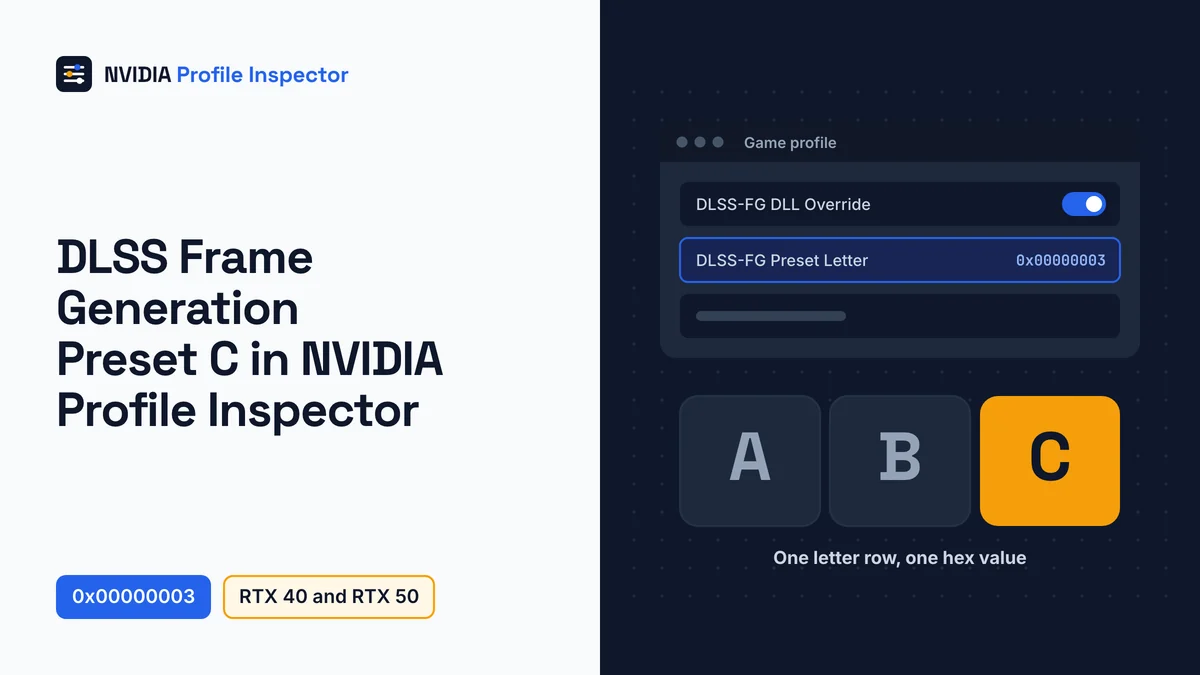
DLSS Frame Generation Preset C is NVIDIA's faster Performance Mode for frame generation, released in beta on October 13, 2026. To force it in Profile Inspector 3.0.2.1, turn on DLSS-FG - Enable DLL Override and set DLSS-FG - Forced Preset Letter to 0x00000003 on the game's profile. It trades a little image quality for more speed on RTX 40 and RTX 50 cards.
What is DLSS Frame Generation Preset C
Preset C changes one of the two AI models that DLSS frame generation runs at once. The first reads motion vectors, depth and other game data to track how objects move between two rendered frames. The second works out optical flow for things like the UI and ray-traced effects.
Preset C keeps the first model and swaps the second one for "a faster and lighter algorithm", in NVIDIA's words. The change applies to all three modes: Frame Generation, Dynamic Multi Frame Generation and Multi Frame Generation. NVIDIA calls the cost "minor trade-offs in image quality".
NVIDIA announced the Performance Mode as an NVIDIA App beta. In the App's Frame Generation override, the new mode carries the label Preset C. Profile Inspector reaches the same driver entry through a row in group 05 - Upscaling and Frame Generation.
Preset A vs B vs C at a glance
The three letters share one row, DLSS-FG - Forced Preset Letter (0x10E41DF1). The hex values stay fixed, but the names on screen depend on the build you run.

| Letter | Name in 3.0.2.1 (stable) | Name in 3.0.2.3 (pre-release) | Value | What it is for |
|---|---|---|---|---|
| A | Preset A | Preset A (Default Preset) | 0x00000001 | The default model |
| B | Preset B | Preset B (UI Focus) | 0x00000002 | Cleaner HUD and text |
| C | Preset C (unused) | Preset C (Performance Focus) | 0x00000003 | More speed, lighter optical flow |
Preset B arrived with UI Recomposition in DLSS SDK 310.6.0, which explains its UI Focus name. The same row also offers N/A (0x00000000), Use recommended preset (0x00FFFFFE) and Use latest available (0x00FFFFFF).
The "(unused)" tag worries people, but it is only a name. Build 3.0.2.1 came out on July 5, 2026, months before Preset C existed. On October 13, 2026 a contributor wrote that they "decided to remove all (unused) tags and just put the model name in the available ones". Neither commit that day changed a value. Both builds therefore write the same 0x00000003. Nobody on the issue tracker has confirmed the stable build in a game yet, so check the result after you launch.
Which GPUs support Preset C
NVIDIA lists DLSS Frame Generation Preset C for GeForce RTX 40 Series and RTX 50 Series cards, plus RTX Spark laptops. Older cards are not on the list. NVIDIA lists no minimum driver for it.
The file matters more than the driver. A user who reported Preset C on the tool's GitHub said NVIDIA's frame generation files v310.9.16 carry it, delivered through App updates. A third-party mod's release notes say the same about 310.9.16. NVIDIA's public DLSS SDK posted that version on October 16, 2026.
Profile Inspector sets the same driver entry the App sets. The DLL override row then loads the newest frame generation file NVIDIA has delivered to your PC. The tool's own note warns those updates "often lag", so Preset C needs that file to be present.
Some games never offer DLSS frame generation at all. For those, the driver's Smooth Motion frame generation is the option to look at, never alongside native frame generation.
How much faster is Preset C
NVIDIA gives one number: on a GeForce RTX 5060, the Performance Mode is "up to 35% faster". The post shows no game list or chart.
One hardware site reported NVIDIA's breakdown for an RTX 5060 8GB in Cyberpunk 2077 at 1440p. It shows the frame generation "performance cost" cut by 10% at 2x, 23.8% at 4x and 36.4% at 6x. Those numbers shrink the cost of making frames, so the total FPS gain is smaller than each percentage. NVIDIA gave no matching figures for RTX 40 cards.
An independent test points the same way. It ran an RTX 5080 in Crimson Desert at 4K, with DLSS 4.5 Performance and Ray Reconstruction. Its gains over Preset B grew with the multiplier:
| Multiplier | Preset C over Preset B |
|---|---|
| 2x | about 5% |
| 4x | about 9.5% |
| 6x | about 18% |
That is one game on one card. Expect the gap to be small at 2x and largest at the high multipliers that RTX 50 cards run.
Preset C vs Preset B image quality and HUD
Preset B keeps text and HUD parts cleaner, and Preset C gives that up for speed. That follows from the design, because C replaces the model that handled UI elements.
In the independent RTX 5080 test in Crimson Desert, Preset B kept shifting subtitles intact, while C switched to "a simpler frame-blending effect" on them. Fire particles also broke up more on Preset C. Another tester reported UI blur and ghosting once the base frame rate drops under about 40 FPS.
| Your situation | Letter to pick |
|---|---|
| High multiplier (4x to 6x) on an RTX 50 card | C |
| Base frame rate well above 40 FPS | C |
| Game with heavy subtitles, maps or HUD text | B |
| Base frame rate under about 40 FPS | B |
| Flicker or ghosting you can see on C | B |
How to set Preset C in Profile Inspector
Profile Inspector sets Preset C by changing two rows in the game's driver profile. In the NVIDIA App, opt in to betas under Settings > About, then pick Preset C under DLSS Override - Model Presets > Custom.

Step 1: Find the game and back it up
Pick the game from the drop-down list and load its own profile, not the base one. Export a .nip backup first, so the old values are one import away.
Step 2: Switch the DLSS-FG DLL row to On
Find DLSS-FG - Enable DLL Override (0x10E41E03) and set it to On, value 0x00000001. Only DLSS 2 or newer games accept the override, and some games block it. The other frame generation rows, such as the mode and frame count, are covered in the Frame Generation section of the DLSS override guide.
Step 3: Set the letter row to 0x00000003
Set DLSS-FG - Forced Preset Letter (0x10E41DF1) to 0x00000003. The value reads Preset C (unused) on stable build 3.0.2.1 and Preset C (Performance Focus) on the 3.0.2.3 pre-release. Click Apply Changes.
Step 4: Fix a letter that does not stick
The NVIDIA App route also selects Custom. If the letter has no effect, the tool's notes say DLSS - Forced Model Preset Profile (0x00634291) may need changing. Its values are N/A 0x00000000, Recommended 0x00000001 and Custom 0x00000002.
Step 5: Check it applied
Start the game and turn frame generation on in its menu. The DLSS indicator overlay shows what the driver loaded, including frame generation. In issue #513, the user who asked whether the stable label applies C got no reply. The overlay is your proof.
How to go back to Preset A or B
Undoing DLSS Frame Generation Preset C takes one value. Set DLSS-FG - Forced Preset Letter back to N/A (0x00000000) and the game picks its own letter again. To pick one yourself, use Preset A (0x00000001) or Preset B (0x00000002), then click Apply Changes.

If Preset C keeps coming back, the NVIDIA App may be holding its own override for the game. The App can overwrite profile values, as the guide to how the App and the tool share one profile explains. For more than one row, a full profile reset in Profile Inspector returns everything to NVIDIA's values.
The 3.0.2.2 and 3.0.2.3 builds are still marked pre-release on the Profile Inspector releases page. Staying on 3.0.2.1 changes nothing about rollback, since every letter keeps its value.
FAQ
Is the FG letter C the upscaling Preset C?
No. Super Resolution has its own letter row, DLSS - Forced Preset Letter, and its Preset C is an upscaling model. Frame Generation letters sit in DLSS-FG - Forced Preset Letter, so changing one row never changes the other. The upscaling letters have their own guide to DLSS presets.
Can RTX 30 cards run Preset C?
NVIDIA does not support it there. A third-party mod released on October 13, 2026 adds Preset C to RTX 30 cards, but its own notes say that path was validated offline only so far. Driver profiles cannot add frame generation to a card NVIDIA leaves out.
Does Preset C raise latency?
Not in the one public latency figure. A hardware tester on an RTX 5070 at 1440p and 2x frame generation reported 49 ms on Preset B and 47 ms on Preset C. One card and one setting is too little to call it a rule.
Why does the NVIDIA App call it Model C?
The release notes for NVIDIA App 11.0.9 use the name Model C, while NVIDIA's announcement and the override box say Preset C. Both names point to the same Performance Mode. The App notes add that it generates more frames, especially at higher multipliers.
Why is Preset C missing from the App list?
Restart the PC, which is NVIDIA's advice when Preset C is missing from the App's Frame Generation list. Profile Inspector shows the value whether the new file is present or not. Relaunch the game after Apply Changes and let the overlay confirm it.
Conclusion
Two rows do the work: the FG DLL override set to On, and the letter row set to 0x00000003. Pick C for high multipliers and B for text-heavy games or low base frame rates. If the rows save but nothing changes in game, work through the fixes for Profile Inspector errors.