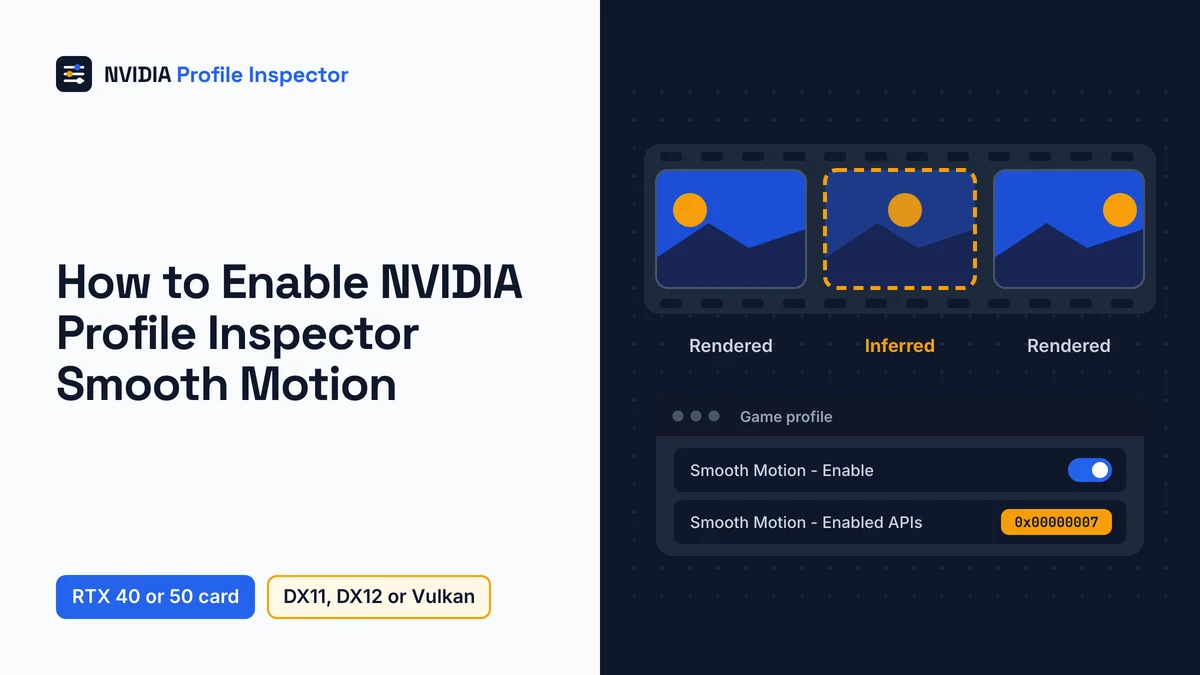
To turn on NVIDIA Profile Inspector Smooth Motion, set Smooth Motion - Enable to On in your game's profile and click Apply Changes. Then check that the second row, Smooth Motion - Enabled APIs, is not 0x00000000. It needs an RTX 40 or 50 card and a DX11, DX12 or Vulkan game. Unlike the NVIDIA App, the tool does not turn on Ultra Low Latency for you (issue #377), so set it on the same profile.
Smooth Motion requirements by GPU, driver and game
Smooth Motion needs an RTX 40 or 50 card, driver 571.86 or newer (581.08 for RTX 40) and a DX11, DX12 or Vulkan game. Smooth Motion is NVIDIA's driver AI model that adds one inferred frame between rendered ones. RTX 50 cards got Smooth Motion on January 30, 2025. NVIDIA announced RTX 40 support on August 18, 2025, and it arrived with Game Ready Driver 581.08 on August 19. NVIDIA has announced no support for RTX 30 or older cards. Club386 reported two community mods that add it to RTX 30 cards on September 24, 2026, one of them NVSmooth30, which relies on an NvPresent64.dll file. They are not from NVIDIA, and Club386 calls the port "not a perfect implementation".

The table sorts each check into what works and what does not.
| Check | Works | Does not work or not supported |
|---|---|---|
| GPU | RTX 50 (from 2025-01-30), RTX 40 (driver 581.08, 2025-08-19) | RTX 30, RTX 20 and GTX: no NVIDIA support |
| Driver, RTX 50 | 571.86 or newer, the floor the tool's XML settings file lists for both rows | Older drivers: the tool hides the rows |
| Driver, RTX 40 | 581.08 or newer, per NVIDIA's August 19, 2025 driver post | A driver between 571.86 and 581.08 shows the rows, but RTX 40 support came later |
| Game API | DX11, DX12, Vulkan | DX9, OpenGL: not among the Enabled APIs values |
| Game ships native DLSS Frame Generation | Use DLSS Frame Generation instead | Running both, which NVIDIA says to avoid |
Before 581.08 shipped on August 19, 2025, XDA and Wccftech reported that RTX 40 owners could already turn it on with the 590.26 developer driver and this tool's row.
Smooth Motion is a driver profile setting, so for online games see what anti-cheat makers have said about driver profile edits.
Enable NVIDIA Profile Inspector Smooth Motion in four steps
The NVIDIA Profile Inspector Smooth Motion setup uses two rows on the game's own profile: Smooth Motion - Enable and Smooth Motion - Enabled APIs. Then you save and restart the game.

Step 1: Start from the game's driver profile
Open the tool and type the game's name in the profile box. If this is your first edit in the tool, export a .nip backup first, as the steps for how to open a game profile in Profile Inspector show. Use the game's profile, not _GLOBAL_DRIVER_PROFILE (Base Profile). A global switch would also reach games that ship native DLSS Frame Generation, and NVIDIA says the two should not run together.
Step 2: Switch Smooth Motion Enable to On
Scroll to group 05 - Upscaling and Frame Generation and find Smooth Motion - Enable, setting ID 0xB0D384C0. Pick On, which is 0x00000001. The only other value is Off, or 0x00000000. Filtering, sync and many more switches live in other groups, and the other Profile Inspector settings worth changing are sorted by goal.
No row at all means one of two things. Your driver is older than 571.86, or a custom CustomSettingNames.xml file in the tool's folder is hiding it. Update the driver, or move the custom XML out of the tool's folder.
Step 3: Check the Enabled APIs value
Next, look at Smooth Motion - Enabled APIs, setting ID 0xB0CC0875. In the XML, a grayed out row does not exist in the profile yet, and that means every API is allowed. A row that exists and holds 0x00000000 allows no API, so Smooth Motion never starts. The safe pick is the value labeled 0x00000007 Allow All (DX12+DX11+Vulkan), which is also the XML's override default. Leaving the row grayed out works as well.

Old forum threads call this row Feature Flags. Commit 89957fc renamed it on July 16, 2025, so Feature Flags 0x7 means Enabled APIs 0x00000007 today.
Step 4: Restart the game fully after saving
Click Apply Changes, then close the game fully and start it again. A game that is already running keeps the old profile until it restarts. One Steam user reported a crash right after turning Smooth Motion on, and said it worked once the PC had rebooted. A reboot is a cheap first step if your first launch fails.
Check it works with Debug Bars
Smooth Motion - Debug Bars (ID 0xB01B8B02) draws colored bars on every frame Smooth Motion generates. Bars on screen prove it runs, and no bars mean it does not.
Set Debug Bars to On on the same game profile, click Apply Changes and launch the game. For more detail, Smooth Motion - Debug Log Level (ID 0xB053C379) accepts 1, 2 or 3 and writes logs to C:\NvPresent\. Once you have your answer, set both back to Off.
Two more Smooth Motion rows exist for diagnostics only. Smooth Motion - Flip Metering 0 (0xB03A4546) and Smooth Motion - Flip Metering 1 (0xB03A4547) are log and flip-queue switches, so leave both at 0x00000000 Off. In issue #480, Orbmu2k said the tool cannot control a driver flag that has no effect.
Debug Bars report on Smooth Motion alone and say nothing about DLSS. To see which DLSS preset a game runs, turn on the DLSS indicator instead.
Does Smooth Motion increase FPS or input lag?
Yes, Smooth Motion raises the shown frame rate, and it also adds input lag. NVIDIA calls the effect "typically doubling the perceived frame rate", but the extra frames are inferred, not rendered, and outside reports show some added input delay.
NVIDIA's RTX 50 launch post introduced Smooth Motion for games without DLSS Frame Generation. DSOGaming tried it in February 2025 on an RTX 5090 with driver 572.16 and measured about 10 ms of extra input lag in Black Myth Wukong. The same DSOGaming review saw crashes in most games while MSI Afterburner and RivaTuner were running, and crosshair ghosting in Resident Evil 4 Remake.
Add Low Latency Mode yourself
The App pairs Smooth Motion with Low Latency Mode, and the tool does not. GitHub issue #377, opened on January 10, 2026, says the toggle "does not synchronously set the ultra low latency option to ultra as NVAPP does". So on the same profile, switch Ultra Low Latency - Enabled to On and lower Maximum Pre-Rendered Frames to 1. Together, those two rows give you the Ultra pairing the App would set. An earlier report, issue #353 (October 2025), says recent drivers stopped engaging Ultra Low Latency with Smooth Motion even through the App.
Issue #353 also reports the cap under the refresh rate failing with Smooth Motion on recent drivers, and the driver's own frame cap settings cover the cap itself.
Smooth Motion vs DLSS Frame Generation
Never run Smooth Motion and DLSS Frame Generation together. NVIDIA's driver guide calls them "competing technologies" and says using both "results in lower performance and visual artifacts".
The same guide says any title without native DLSS can use Smooth Motion, as can one with native DLSS turned off. NVIDIA's driver guide sits in its Linux driver docs, and the Windows launch post also aims Smooth Motion at games without DLSS Frame Generation. DLSS Super Resolution is a different matter, so you can still pick a DLSS Super Resolution preset for the same game. If the game ships its own Frame Generation, use that instead, and override Frame Generation and Multi Frame Generation on that profile.
Smooth Motion through the NVIDIA App
The NVIDIA App's Smooth Motion switch sits under Graphics > Program settings > Driver Settings, and DSOGaming reported that turning it on there also switches on Low Latency Mode.
The NVIDIA App release notes show three steps. Version 11.0.2 brought Smooth Motion to RTX 50, 11.0.5 added RTX 40, and 11.0.7 fixed the setting going missing from Global Settings. The App toggle writes to the same driver profile as the NVIDIA Profile Inspector Smooth Motion rows, so pick one tool per game and stick with it. Last save wins when both tools write that profile, as how Profile Inspector and the NVIDIA App differ shows.
Smooth Motion not working? Fixes by symptom
When Smooth Motion does nothing, one of four causes is usually behind it. Enabled APIs is at 0x00000000, the driver is older than 571.86, the game is not DX11, DX12 or Vulkan, or native DLSS Frame Generation is also on.

| Symptom | Likely cause | Fix |
|---|---|---|
| Smooth Motion rows missing in the tool | Driver older than 571.86, which makes the tool hide both rows, or a custom CustomSettingNames.xml in the tool folder, which hid them for the reporter in issue #333 | Update the driver; move the custom XML out |
| A guide says Feature Flags and the tool has no such row | Renamed in July 2025, in commit 89957fc | Use Smooth Motion - Enabled APIs |
| No debug bars, no change in game | Enabled APIs at 0x00000000, or a DX9 or OpenGL game | Reset the row or set 0x00000007; CustomSettingNames.xml has no API value for DX9 or OpenGL |
| Artifacts or lower FPS | Native DLSS Frame Generation also on | Turn one of the two off |
| Input feels laggy | The tool does not set Ultra Low Latency, a user reports in issue #377; in issue #353, Ultra Low Latency also failed to engage through the NVIDIA App on recent drivers | Set Maximum Pre-Rendered Frames to 1 and Ultra Low Latency - Enabled to On |
| Game crashes on launch | Overlay tools running, or a fresh change, per DSOGaming and a Steam user | Close MSI Afterburner and RivaTuner; reboot |
| NVIDIA App toggle grayed out | Enabled APIs not set, a user report in issue #377 | Set Enabled APIs in the tool, then use the App toggle |
| FPS counter shows wrong numbers | Old NVIDIA App build | Update to App 11.0.5.266 or later |
Moving the custom XML out brought the rows back for the reporter in issue #333. The tool also hides any row whose minimum driver is newer than yours. Crashes of the program itself or a failed Apply Changes have other causes, such as a broken Drs folder, covered in Profile Inspector itself will not open or save.
How to disable Smooth Motion
To undo Smooth Motion, switch Smooth Motion - Enable to Off (0x00000000) on the same game profile and click Apply Changes. Then put back every other row you touched for it.
Smooth Motion - Enabled APIs: return it to its old value, or reset it so the row is grayed out again.Smooth Motion - Debug BarsandSmooth Motion - Debug Log Level: set both toOff.- If you lowered the render queue for Smooth Motion, return
Ultra Low Latency - EnabledandMaximum Pre-Rendered Framesto their earlier values.
The tool can return one row to the driver default or restore a whole game profile, as the row icon and Defaults walkthrough shows. Restart the game after the change. If you used the NVIDIA App, switch Smooth Motion off at the same Driver Settings path.
FAQ
Which games refuse Smooth Motion?
Some games refuse Smooth Motion even on supported cards. DSOGaming found Final Fantasy VII Rebirth would not take it through Global Settings, only per game. On NVIDIA's developer forum, a user on driver 590.26 said it did not run in some Sony, EA and RE Engine games. Debug Bars show in one launch whether your game is one of them.
Is there a Smooth Motion frame multiplier?
No. The tool's settings file gives Smooth Motion only On and Off, with no frame count. NVIDIA describes it as one inferred frame between two rendered frames. The count row people stumble on, DLSS-MFG - Fixed Frame Generation Count (0x104D6667), belongs to DLSS Multi Frame Generation in supported games.
Is Smooth Motion in the NVIDIA Control Panel?
No. The only Windows switch NVIDIA documents is in the NVIDIA App under Graphics, Program settings, Driver Settings. Profile Inspector edits the same driver profile directly through the two rows Smooth Motion - Enable and Smooth Motion - Enabled APIs, so you can skip the App menus.
Does Smooth Motion work on Linux or AMD cards?
On Linux, NVIDIA's 575.57.08 driver README turns Smooth Motion on per game with NVPRESENT_ENABLE_SMOOTH_MOTION=1 through its present Vulkan layer, aimed at RTX 50 cards and x86_64 Vulkan apps. It warns that third-party overlays can clash. Profile Inspector is Windows only, and AMD or Intel cards lack this feature, as covered under Profile Inspector on AMD, Intel and Linux.
Do I need to download Smooth Motion?
No. Smooth Motion ships inside NVIDIA's Game Ready Driver, so a current driver already has it. RTX 40 and 50 owners have no separate installer or patch to fetch. A site that offers a Smooth Motion download is not offering anything from NVIDIA, so skip it.
Conclusion
Smooth Motion is two rows away on an RTX 40 or 50 card running a DX11, DX12 or Vulkan game. Set Smooth Motion - Enable to On, keep Smooth Motion - Enabled APIs off 0x00000000, apply and relaunch, and let Debug Bars confirm it on that first run. Skip it in games that ship DLSS Frame Generation. Because the tool leaves latency untouched, finish by setting Ultra Low Latency and pre-rendered frames on the same profile.