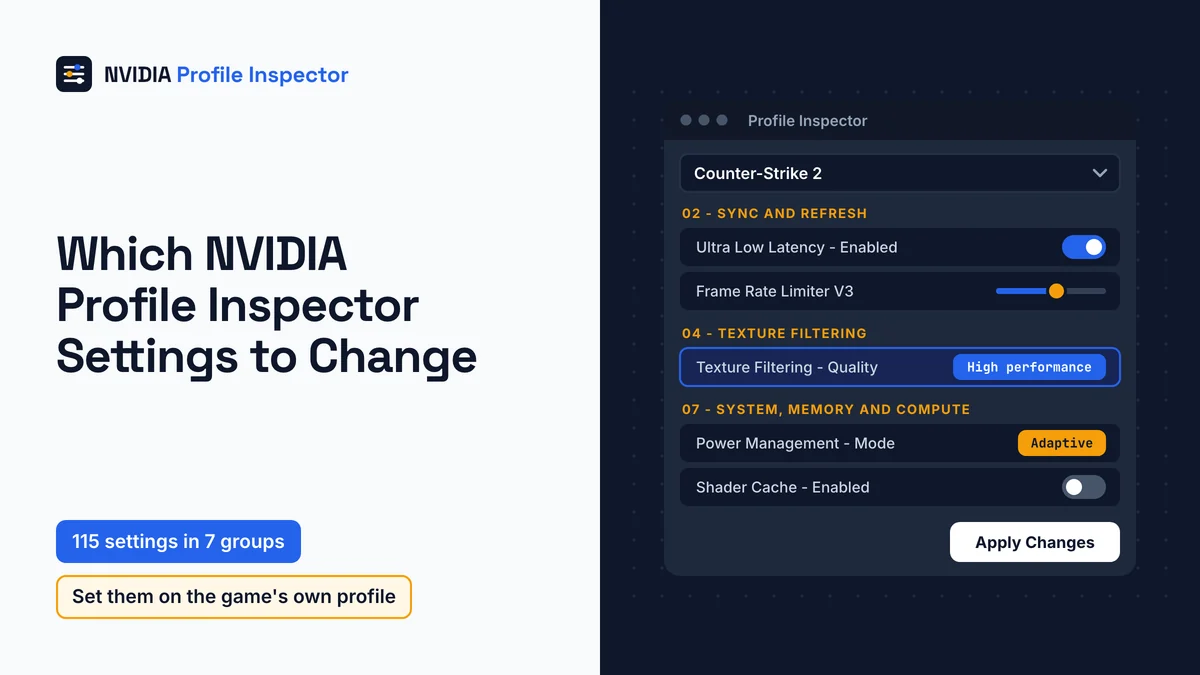
Most players need only a few NVIDIA Profile Inspector settings: Texture Filtering - Quality, Power Management - Mode, the frame cap, low latency, and some DLSS and shader cache rows. Set them on the game's own profile. Each goal gets a starting value, its hex code and its undo value. The frame cap and low latency get a link to their own guides instead. Most other named entries can stay at default.
Best NVIDIA Profile Inspector settings by goal
The best starting values depend on your goal: more FPS on a weak PC, lower input latency, sharper image quality, fewer stutters or longer laptop battery life.

Every value in the goal table goes on one game's profile and only counts after Apply Changes, as the walkthrough for opening a game profile shows. The two exceptions are the laptop and shader pre-compile rows, which belong to the global profile.
The README warns that a value that helps one game can do nothing in another, or even cause trouble there. So treat each row as a starting point. Change one thing, play a normal session, then decide.
The Undo value column shows the tool's neutral value, such as Adaptive, Application-controlled or Disabled. Where NVIDIA names a GeForce default, that value is used instead.
| Goal | Setting | Start with | Hex | Undo value | Condition |
|---|---|---|---|---|---|
| More FPS | Texture Filtering - Quality | High performance | 0x00000014 | Quality, 0x00000000 (NVIDIA's GeForce default) | NVIDIA: "the highest frame rate possible" |
| More FPS | Power Management - Mode | Prefer maximum performance | 0x00000001 | Adaptive, 0x00000000 | Game profile only |
| Image quality | Anisotropic Filtering - Mode | User-defined / Off | 0x00000001 | Application-controlled, 0x00000000 | Must be set before the Setting row applies |
| Image quality | Anisotropic Filtering - Setting | 16x | 0x00000010 | Follows Mode | 6x shares the hex value of 4x |
| Image quality | Texture Filtering - Quality | High quality | 0xFFFFFFF6 | Quality, 0x00000000 | Trilinear Optimization is ignored at High quality |
| Fewer stutters | Shader Cache - Pre-compile Shader Options | Low | 0x00000001 | Disabled, 0x00000000 | Global profile; DX12 only, driver 595.97 or newer, off by default |
| Laptop | Power Management - Mode (global) | Keep Adaptive | 0x00000000 | Adaptive, 0x00000000 | Raise to Prefer maximum performance on game profiles only |
Lower latency and the frame cap both live in group 02. The latency queue rows act only in DirectX 9 or 11 games.
In 3.x, the filter for modified settings lists only the rows you changed, so use it after a few sessions to prune what did nothing. The Defaults button returns a whole profile to NVIDIA's values, and the steps to reset one setting, one profile or all of them start with a single row.
Low-end PC and potato graphics
For a weak PC, the texture row that reliably buys frames is Texture Filtering - Quality at High performance. NVIDIA's Control Panel help says that value offers "the highest frame rate possible".
Expect softer texture filtering in return. High performance will not drop your resolution or switch off effects, so the game's own low or potato preset still does the heavy lifting.
Best image quality settings
Set Anisotropic Filtering - Mode to User-defined / Off, then Anisotropic Filtering - Setting to 16x, and Texture Filtering - Quality to High quality. Mode must read User-defined / Off before the Setting row applies, and LOD bias and texture filtering lists the AF levels to skip.
Driver sharpening (Sharpening Filter - Enabled) is Off (0x00000000) by default, and NVIDIA's help names no recommended sharpening level. Its strength row, Sharpening - Value (0x002ED8CD), runs from 0.00 to 1.00.
Shader stutter and Pre-compile Shader Options
Shader Cache - Pre-compile Shader Options (0x00EAD189, group 07) builds DirectX 12 shaders in the background before you play. The XML ties the row to NVIDIA Auto Shader Compilation. Set it on _GLOBAL_DRIVER_PROFILE (Base Profile), where the NVIDIA App places the same switch.
NVIDIA's March 2026 announcement says the feature rebuilds DirectX 12 shaders "while your system is idle". It needs Game Ready driver 595.97 WHQL or newer and is off by default. In the NVIDIA App, the same switch sits only under Graphics, Global Settings, Shader Cache, with a Compile Now button.
The tool's CustomSettingNames.xml lists four values for this row.
| Value | Hex | What it means |
|---|---|---|
| Disabled | 0x00000000 | Off, the default |
| Low | 0x00000001 | The background compile uses the least of the system |
| Medium | 0x00000002 | A middle share |
| High | 0x00000003 | The background compile uses the most of the system |
Low is the gentle start, because it leaves the most of the PC free while the compile runs. A missing row points to an old driver: Orbmu2k confirmed in issue #449 that it only shows on driver 595.97 or newer.
Two limits apply. The feature only covers DirectX 12 games. And a game you just downloaded still builds its shaders in-game the first time. Set the row to Disabled to undo it. Whether a driver update clears the existing cache is covered in the shader cache size guide.
Laptops and battery life
On a laptop keep Power Management - Mode at Adaptive on the global profile and raise it only on game profiles. The power management and CUDA guide lists the values and what NVIDIA says about each.
NVIDIA Profile Inspector settings explained in 7 groups
3.0.2.1 names 115 settings, split into 7 groups. The biggest, 05 - Upscaling and Frame Generation, holds 30 of them, about a quarter of the list. The settings file on GitHub has since grown to 117. It adds DLSS - Enable Streamline Override (0x10E41E06) to 05 and rBAR - Enable v2 (0x000BFA21) to 07. Neither is named in 3.0.2.1, so each shows under the driver's own name or as the bare ID, by default only once the profile holds a value.

The group names are fairly new. Release 3.0.1.11 (April 2026) reworked the setting names, and its notes describe "new groups and ai generated descriptions". Any guide older than that shows a different layout from the one on your screen.
Group names and entry counts come from the 3.0.2.1 CustomSettingNames.xml.
| Group in the tool | Entries in 3.0.2.1 | What it controls | Settings worth knowing | Full guide |
|---|---|---|---|---|
01 - Compatibility | 4 | Compatibility bits that let forced AA and AO work in DX9 and DX1x games | Antialiasing - Compatibility (DX9), Ambient Occlusion - Compatibility (bitfield, no value list) | Covered in the AA and sharpening guide |
02 - Sync and Refresh | 20 | Frame caps, V-Sync, G-SYNC, the low latency queue | Frame Rate Limiter V3, Ultra Low Latency - Enabled, Maximum Pre-Rendered Frames | frame cap, low latency |
03 - Antialiasing and Sharpening | 14 | Driver MSAA, FXAA, transparency AA, sharpening | Sharpening Filter - Enabled, Antialiasing - Transparency Supersampling | AA and sharpening |
04 - Texture Filtering | 12 | Anisotropic filtering, LOD bias, filtering quality | Texture Filtering - Quality, Anisotropic Filtering - Mode, Anisotropic Filtering - Setting | Covered in the LOD bias and texture filtering guide |
05 - Upscaling and Frame Generation | 30 | DLSS Super Resolution, Ray Reconstruction, Frame Generation and Multi Frame Generation overrides, Smooth Motion | DLSS - Forced Preset Letter, Smooth Motion - Enable | force a DLSS preset or DLAA |
06 - Rendering Features | 16 | RTX HDR, RTX Dynamic Vibrance, DXR and Vulkan ray tracing switches, Ansel, ambient occlusion | RTX HDR - Enable, Ambient Occlusion - Setting | RTX HDR and Dynamic Vibrance |
07 - System, Memory and Compute | 19 | Shader cache, Resizable BAR, power mode, threaded optimization, CUDA, PhysX, OpenGL entries | Shader Cache - Cache Size, rBAR - Enable, Power Management - Mode | shader cache, ReBAR, power and CUDA |
The wider Reference.xml file adds two more groups, 08 - SLI and NVLINK and 10 - OpenGL. With one graphics card in the PC, the SLI and NVLINK group has nothing to act on.
Which settings matter for your type of game?
Your game's graphics API decides which groups can touch it. DirectX 9 and 11 games respond to more driver overrides than DirectX 12 and Vulkan games, which control their own frame queue.
Competitive shooters such as Fortnite and Counter-Strike 2 also get their own setting pages. Driver profile edits never touch game files, yet only the publisher rules on bans, as whether driver tweaks are safe in online games explains.
Check the API in the game's graphics menu or on PCGamingWiki, then find the matching game type in the table.
| Game type | Groups that matter | What does not apply |
|---|---|---|
| DirectX 12 or Vulkan game | 02 frame cap; 05 DLSS and Smooth Motion entries | Ultra Low Latency and pre-rendered frames (the game decides the queue) |
| DirectX 9 or 11 game | 01 compatibility bits, 03 AA, 04 anisotropic filtering, 02 latency rows (see low latency guide) | Every group can apply |
| OpenGL game | Triple Buffering (with V-Sync), the OpenGL entries in 07 (Extension Limit (OGL), Version Override (OGL), Shader Cache - Enabled (OpenGL)), Texture Filtering - LOD Bias (OGL) | DirectX-only entries such as Trilinear Optimization |
| DirectX 12 game with shader stutter | 07 Shader Cache - Pre-compile Shader Options | The first launch of a new game still compiles shaders |
Does NVIDIA Profile Inspector increase FPS?
NVIDIA Profile Inspector does not raise FPS by itself; FPS rises only when a changed row cuts GPU work or adds generated frames in a game that supports it. NVIDIA Profile Inspector settings only change driver values.

Videos and Reddit posts promise big gains from long tweak lists. In practice, four things can move the FPS counter:
Texture Filtering - Qualityat High performance (0x00000014).- The DLSS mode and preset, which the DLSS override guide shows how to force. A lower render resolution gives the GPU less work per frame.
Power Management - Modeat Prefer maximum performance on the game profile, which helps only in GPU-bound games.- Smooth Motion, which adds generated frames on supported cards. It runs on RTX 40 and 50 cards, so check yours before you turn on Smooth Motion for frame generation.
Latency rows change how fast the game responds, not the counter. A frame cap lowers FPS on purpose. Power and filtering rows do nothing when the CPU holds the game back.
Measure the same scene before and after each change with any FPS counter you trust. If the number does not move, undo the change and keep the profile clean.
Settings to leave alone and why
Some NVIDIA Profile Inspector settings only track a Control Panel state, draw a debug overlay or serve hardware you do not have. Skip the entries in the table, because changing them does nothing useful in a game.

| Entry | Hex ID | Why leave it | If you changed it |
|---|---|---|---|
Ultra Low Latency - CPL State | 0x0005F543 | Only mirrors the Control Panel; the working switch is Ultra Low Latency - Enabled | Off |
Triple Buffering | 0x20FDD1F9 | NVIDIA's help calls it an OpenGL setting that improves performance when V-Sync is also on, so NVIDIA documents no effect in DirectX games | Off |
Debug and indicator overlays: Flip Indicator, Multi-Plane Overlay Indicator, GSYNC - Indicator Overlay, GSYNC - Support Indicator Overlay, Antialiasing - FXAA Indicator Overlay, PhysX - Indicator Overlay | 0x002CF156, 0x00A88888, 0x10029538, 0x008DF510, 0x1068FB9C, 0x1094F16F | On-screen markers for checking a feature, not for play | Off or Disabled (Flip Indicator uses Disabled; for PhysX, Off is 0x34534064) |
Smooth Motion - Debug Bars, Smooth Motion - Debug Log Level | 0xB01B8B02, 0xB053C379 | Diagnostics only; see the Smooth Motion guide | Off |
Vertical Sync - Smooth AFR Behavior | 0x101AE763 | Only for multi-GPU AFR setups | Off |
Texture Filtering - LOD Bias Auto-Adjust (for SGSSAA) | 0x00638E8F | Acts only when sparse grid supersampling is on | Off |
rBAR - Enable on the global profile | 0x000F00BA | The README asks for profile-specific changes | Disabled |
Power Management - Mode at Prefer maximum performance on a laptop's global profile | 0x1057EB71 | Keeps the GPU at full speed for every program, which drains a laptop's battery | Adaptive, 0x00000000 |
WKS_MEMORY_ALLOCATION_POLICY_ID | None (raw driver name) | A user reports it is gone after 2.4.0.9 | Single user report, issue #321, no maintainer reply |
ReBAR belongs on one game at a time, and the ReBAR guide shows how to force it there.
Hidden and unknown settings in Profile Inspector
NVIDIA hidden settings are driver profile entries the Control Panel never shows. Profile Inspector exposes them, and the README warns that many are experimental, deprecated, tied to one driver version or undocumented by NVIDIA.
The filter button next to search (tooltip "Filter setting and value sources") lets you add sources beyond Common (CSN): Driver API, Driver Constants, Reference and Predefined Scan. The 115 named settings are the Common (CSN) source. The other sources add many more, shown by hex ID or a raw driver name, often with little or no description. Hidden rows also appear inside existing profiles, which is why a familiar game can show extra entries you never set.
Leave a row with no description alone unless you know exactly what it does. When a forum post tells you to change one of these secret settings, ask where the value came from. If you still want to try, export a backup first, test it on one game and undo it if nothing changes.
CustomSettingNames.xml and Reference.xml
CustomSettingNames.xml gives the common settings their names, groups, value lists and descriptions. Reference.xml holds a wider reference that adds the SLI and NVLINK and OpenGL groups.
Both files ship with the tool. You never need to download, replace or edit either one to use a value here. When a guide quotes a hex ID or a value code, these two files are where the tool gets it.
Minimum driver version for new settings
A missing row usually means an old driver. Each newer entry lists a minimum driver version in the XML, and on an older driver the tool hides that row.
| Setting | Hex ID | Minimum driver | Group |
|---|---|---|---|
Ultra Low Latency - Enabled | 0x10835000 | 430.00 | 02 |
Frame Rate Limiter V3 | 0x10835002 | 441.87 | 02 |
Sharpening Filter - Enabled | 0x00598928 | 441.87 | 03 |
Smooth Motion - Enable | 0xB0D384C0 | 571.86 | 05 |
PhysX - Enable 32-bits GPU Acceleration (RTX 50) | 0x5067ECC4 | 591.44 | 07 |
Shader Cache - Pre-compile Shader Options | 0x00EAD189 | 595.97 | 07 |
0x000BFA21, not named in 3.0.2.1 (rBAR - Enable v2 in newer settings files) | 0x000BFA21 | 616.56 | 07 |
Install a current Game Ready driver first, then open the tool again. Values that change back on their own after an update are a different problem, covered under values that change back after a driver update.
Old v2 setting names and their v3 names
A 2.4-era guide still works if you match settings by hex ID. The hex ID is what the driver uses, so it stays the same when the label changes.
The 2.4.0.9 named list had six active groups: 1 Compatibility, 2 Sync and Refresh, 3 Antialiasing, 4 Texture Filtering, 5 Common and 6 SLI. The old 5 - Common catch-all split three ways. DLSS and Smooth Motion went to group 05. RTX HDR, ray tracing, ambient occlusion and Ansel went to 06. Shader cache, rBAR, threaded optimization, power, CUDA, the PhysX indicator and the OpenGL entries went to 07. No 3D Vision stereo entries are in the current named list.
The old names come from the settings file at tag 2.4.0.9.
| Old name (2.4.0.9) | Hex ID | Name now | Group now |
|---|---|---|---|
rBAR - Feature | 0x000F00BA | rBAR - Enable | 07 |
Shadercache - Cachesize | 0x00AC8497 | Shader Cache - Cache Size | 07 |
Shadercache - Enabled | 0x00198FFF | Shader Cache - Enabled | 07 |
Ansel - Enabled | 0x1075D972 | NVIDIA Ansel - Enabled | 06 |
Texture Filtering - Driver Controlled LOD Bias | 0x00638E8F | Texture Filtering - LOD Bias Auto-Adjust (for SGSSAA) | 04 |
FAQ
Is there a best NVIDIA Profile Inspector settings file?
No shared file fits every PC. Importing someone else's .nip file restores or merges whole profiles at once, and values tuned for their game, driver and GPU can do nothing on yours. Export your own profiles first, so a single import can put everything back if the shared file causes trouble.
Should you use Optimal performance for power management?
Optimal performance (0x00000005) is a Power Management - Mode value in the tool's settings file, but NVIDIA's current Control Panel help does not describe it. NVIDIA documents only Adaptive (0x00000000) and Prefer maximum performance (0x00000001). Stay with one of those two on game profiles, where the effect is documented.
Should you copy a pro player's Profile Inspector settings?
Only row by row. A pro's driver values, when shared, are tuned to their own monitor, GPU and game, so the same list may do nothing on your PC. The tool writes the same driver values for anyone. Copy a setting from a pro or a streamer only when you know what it does and how to undo it.
Who wrote the setting descriptions in the tool?
The notes for release 3.0.1.11 (April 2026) say the settings rework brought "ai generated descriptions", a choice opened for debate in GitHub issue #423. Treat that text as a hint. Where NVIDIA documents a setting in its Control Panel help, read NVIDIA's wording before you rely on the tool's text.
Conclusion
Pick one goal from the table, set its row on the game's own profile, click Apply Changes and play a normal session before you judge the result. A row that moves nothing goes back to its undo value, and entries with no description stay at default. If DLSS is the lever you want for frame rate, learn what each DLSS preset letter means before you force one.