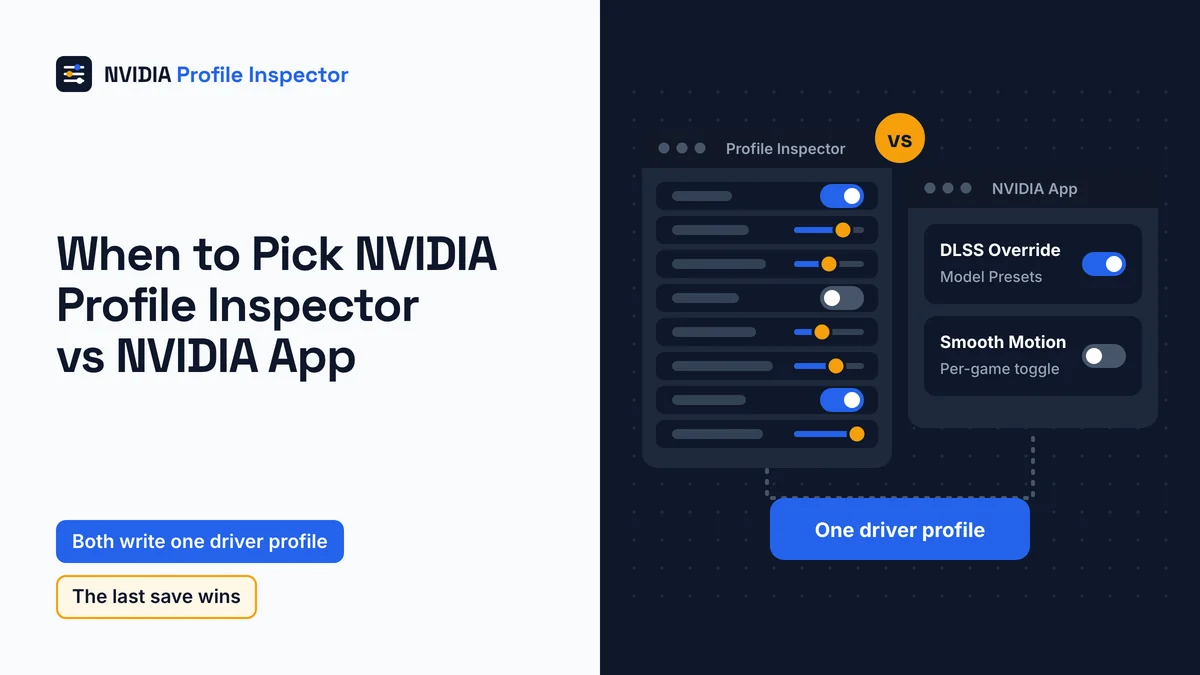
The NVIDIA Profile Inspector vs NVIDIA App choice comes down to NVIDIA's DLSS Override list: use the App's override on a listed game and Profile Inspector on any other. The two can share a PC, but both write to one driver profile and the last save wins. NVIDIA retired the Control Panel for Game Ready and Studio drivers in May 2026, so new setups skip it.
NVIDIA Profile Inspector vs NVIDIA App side by side
In an NVIDIA Profile Inspector vs NVIDIA App comparison, Profile Inspector edits every driver profile row on any game. The NVIDIA App edits only the rows NVIDIA exposes and offers DLSS Override only on games it lists. The Control Panel also edits driver profiles, while DLSS Swapper replaces a file in the game folder. GitHub issues #329 and #466 both start with a DLSS override that will not stick.

NVIDIA Profile Inspector is a free, open source profile editor by Orbmu2k, not an NVIDIA product. The table's rows come from the tool's settings file, NVIDIA's App release notes and DLSS Swapper's own releases.
| Feature | NVIDIA Profile Inspector | NVIDIA App | NVIDIA Control Panel | DLSS Swapper |
|---|---|---|---|---|
| What it changes | Driver profile | Driver profile | Driver profile | DLL file in the game folder |
| Made by | Orbmu2k, open source | NVIDIA | NVIDIA, retired for Game Ready and Studio drivers in May 2026 | beeradmoore, open source |
| DLSS preset on a game NVIDIA lists | DLSS - Forced Preset Letter | DLSS Override - Model Presets | No | Own preset options since v1.2.0.3 |
| DLSS preset on an unlisted game | Any profile | Compatible games only | No | Same options as on listed games |
| Newest DLSS file | No; the DLL override row follows NVIDIA's over-the-air file, which "often lags" | Driver-supplied DLLs | No | Any version from its library |
| Smooth Motion | Six Smooth Motion rows | Per-game toggle | No | No |
| Per-game Resizable BAR | rBAR rows | Per-app switch, App 11.0.9 | No per-game switch; System Information shows a Resizable BAR Yes or No line | No |
| Hidden rows and .nip backups | Yes | Only rows NVIDIA chose to expose | No | No |
| Instant Replay | No | Yes | No | No |
| DLSS 5 Neural Rendering | DLSS-NR rows (driver 610.47 or newer) | No override named by NVIDIA; turned on in the game's Video Settings | No | Not documented |
Only the App records Instant Replay. That one feature is why the reporter in issue #329 wanted to keep it installed.
Can you use Profile Inspector with the NVIDIA App?
Yes, Profile Inspector and the NVIDIA App can run on one PC; a user in GitHub issue #409 runs both. A change made in one shows in the other after a profile refresh. Apply Changes writes straight to the driver database, so Profile Inspector does not have to stay open while you play.
A Reddit PSA claims the DLSS 4 override trick "works much better if you don't have the Nvidia App installed". The clashes on record in the issue tracker are narrower. One is the DLL override rows on games the App does not support (#329, #466). The other is an App that would not start after a profile re-import and reboot (#409).
You also do not need the Revamped fork to run both. Some guides say the original works only once the App is gone, yet #409 and #329 show it running beside the App, so switching to the fork is optional.
Run these five checks before you mix the two:
- Export a .nip of the game's profile first, so one import puts every row back.
- Write down your driver version, so you can spot an update that came in between.
- Exit the game to the desktop before you change an override, then reopen it. NVIDIA's override steps ask for this, because a game reads its profile at launch.
- After any change in the App, refresh the profile in Profile Inspector before you edit it.
- Change one tool at a time, launch the game once, then check the row again.
A row that still flips back after these checks matches the App resets users report in #329 and #466.
Does the NVIDIA App override Profile Inspector?
The NVIDIA App can undo one Profile Inspector row. In user reports, the App switches off the DLL override row on games it does not support (#329, #466). One commenter says the preset and scaling rows stay put, but in #258 an App change also moved the Ray Reconstruction row.
Issue #329, opened on June 22, 2025, is the clearest case. The DLSS override and Preset K kept failing until the reporter removed the App. A commenter there added that the App "only blocks DLSS .dll override for unsupported games".
Frame Generation behaves the same way in issue #466, from May 28, 2026. On a game the App does not support, the FG DLL override in Profile Inspector switched off at every restart. Both are user reports, so test your own game once after any App update.
Why DLSS override is unsupported or grayed out
Grayed out means NVIDIA has not marked the game compatible. The App only offers DLSS Override on those games, and NVIDIA tracks them on its RTX Games and Apps list.

NVIDIA's DLSS override steps say to press Refresh in the App's three-dot menu first. Then you pick a compatible game under Graphics > Program Settings > Driver Settings. Each override also needs the matching feature on in the game's own menu, such as Super Resolution set to ON.
A game outside the list that ships DLSS 2 or newer can still get a new letter. Profile Inspector stores that choice in DLSS - Forced Preset Letter (0x10E41DF3) on the game's profile. One user in #258 found the override flags had no effect on an unsupported game, so confirm the loaded letter with the DLSS indicator overlay.
How to stop the NVIDIA App resetting your override
Four fixes stop the NVIDIA App resetting a Profile Inspector override, and each one costs you something. Pick the first row that fits your game.

| Fix | When it fits | What it costs | Undo |
|---|---|---|---|
| Set the override in the App instead | The game is on NVIDIA's list | Works on listed games only | Pick "Use the 3D application setting", the revert label in NVIDIA's January 2025 override notes |
| Keep the preset row in Profile Inspector, leave the DLL row alone | Unlisted game, you only need the letter | The game keeps its own DLSS file, so K needs a file of 310.2.1 or newer, and L or M need 310.5.0 or newer | Click the row's NVIDIA icon to restore the default |
| Uninstall the NVIDIA App | You do not need its features | You lose Instant Replay and the App's own overrides | Reinstall the App |
Make nvdrsdb0.bin and nvdrsdb1.bin read-only in C:\ProgramData\NVIDIA Corporation\Drs\ | Last resort | The #329 reporter says the App then cannot change anything either | Clear the read-only flag on both files |
The read-only trick touches the driver's own database files. Back up the Drs folder first so you can copy it back if a driver install complains.
NVIDIA Profile Inspector vs NVIDIA Control Panel
Neither Profile Inspector nor the Control Panel locks the other out. The tool's README says it works on the same driver profile database the Control Panel uses, so a setting saved in one replaces that setting from the other. Profile Inspector reaches that database through NVIDIA's Driver Settings API, so the Control Panel program never has to be open.
In issue #290, though, a profile made in the App showed in the tool, while one made in the Control Panel did not. The game still used the Control Panel profile. If a Control Panel change seems missing, check the game's profile name in both programs.
The Control Panel's retirement for Game Ready and Studio drivers was announced on May 26, 2026 in NVIDIA's 610.47 driver article. An existing install stays until you do a clean install. The Microsoft Store copy still downloads, but NVIDIA says it gets no new features or fixes. RTX PRO users keep Control Panel support until their professional features move to the App.
Graphics > Program Settings in the App now replaces the old Manage 3D Settings screen.
Control Panel settings that moved to the App
NVIDIA moved Control Panel settings into the App over several versions. Version 11.0.5 also brought Surround setup and an offline mode across. Two of the moved settings line up with named Profile Inspector rows.
| Setting | Moved in App version | Profile Inspector row |
|---|---|---|
| Anisotropic Filtering, Antialiasing, MFAA, PhysX, Texture Filtering | 11.0.5 | Several rows, no single match |
| Background Application Max Frame Rate | 11.0.5 | Frame Rate Limiter - Background Application |
| Custom Resolution (System > Displays > Display Properties) | 11.0.7 | None |
| CUDA System Fallback policy | 11.0.9 | CUDA - Sysmem Fallback Policy |
Frame Rate Limiter - Background Application caps a game only while it runs in the background, as how the background frame cap works explains. The CUDA sysmem fallback row offers Default, Prefer no sysmem fallback and Prefer sysmem fallback.
DLSS Swapper vs NVIDIA App and Profile Inspector
DLSS Swapper changes which DLSS version a game loads. It replaces the DLSS, FSR or XeSS file inside the game folder, while the App and Profile Inspector change driver settings. The preset that file runs is a separate choice.
Swapper, an open source tool by beeradmoore, swaps the file "without the game needing an update". It finds games from Steam, GOG, Epic, Ubisoft Connect, the Xbox App and Battle.net, or ones you add by hand. It cannot add DLSS to a game that never had it.
In May 2025, its maintainer told users to switch to Preset K through the NVIDIA App "if the game exists there", or through Profile Inspector. Swapper added its own preset options in v1.2.0.3. Frame Generation presets A and B followed in v1.2.4.0, and Ray Reconstruction preset F in v1.2.6.1. Version 1.2.3.2 (January 17, 2026) renamed "Always use latest" to "NVIDIA recommended" to match the App. Version 1.2.7.0 (October 18, 2026) added Frame Generation preset C.
The layers also stack. Swapper puts a newer DLL into an unlisted game, and Profile Inspector picks the letter. The maintainer notes that Swapper gets new DLL files before drivers do.
A file swap is not a profile edit, so read whether a DLSS override can get you banned before online play. Keep the original DLL so you can put it back.
NVIDIA App DLSS override and matching Profile Inspector rows
Each DLSS Override box in the App lines up, by function, with a named Profile Inspector row. Values and step-by-step use live on the page named in the last column.

App 11.0.5 also added a global switch at Graphics > Global Settings > DLSS Override. NVIDIA says it updates "all your supported DLSS Override titles", so it reaches only games on NVIDIA's override list. An unlisted game gets nothing from that switch and still needs its own edit in Profile Inspector.
| NVIDIA App label | Profile Inspector row | Where it is explained |
|---|---|---|
| DLSS Override - Model Presets, Super Resolution | DLSS - Forced Preset Letter | which preset letter fits your GPU and mode |
| Model Presets for Ray Reconstruction and Frame Generation ("Model C" since App 11.0.9.565, beta), plus the Super Resolution and Frame Generation mode boxes | The matching RR letter, FG letter, quality level, DLAA, ratio and frame count rows | force an RR, FG or Super Resolution letter |
| Smooth Motion | Smooth Motion - Enable, Smooth Motion - Enabled APIs | Smooth Motion setup and its two rows |
| Resizable BAR (App 11.0.9, per app) | rBAR - Enable, plus ID 0x000BFA21, a newer row that 3.0.2.1 does not name | the rBAR rows and their size limit |
| Shader cache | Shader Cache - Cache Size, Shader Cache - Pre-compile Shader Options | every shader cache size value |
Recommended in the Model Presets box gives DLSS 4.5 only in some modes, because it keeps K in the higher-quality ones. For 4.5 everywhere, close the game and pick Model L or Model M by hand. App 11.0.6 put Recommended where Latest used to be. The App also cannot choose a DLSS version, since it uses the files that ship with your driver, as DLSS Swapper's maintainer points out. To undo a row you copied by hand, restore that one setting to its NVIDIA default with the row's NVIDIA icon.
FAQ
Is Profile Inspector a viable NVIDIA App replacement?
For driver profile settings, yes, since Profile Inspector edits every row the App edits plus the hidden ones. Profile Inspector does not replace the App's extras. It has no Instant Replay recording and no overlay such as the Statistics View that NVIDIA tells App users to check for DLSS status.
Should you uninstall the NVIDIA Control Panel?
Only if you never use it. Keep the Control Panel if you check Resizable BAR there, since its System Information page shows the Yes or No line that Profile Inspector cannot show.
Do you need the NVIDIA App for DLSS 4.5?
No. NVIDIA rolled DLSS 4.5 Super Resolution out through the App with driver 591.74 in January 2026. Profile Inspector reaches the same models with Preset L or M, as long as a DLSS file of 310.5.0 or newer is already on your PC.
Does Profile Inspector work without the NVIDIA App installed?
Yes. The README's requirements stop at Windows, an NVIDIA GPU with its display driver, .NET Framework 4.8 and admin rights for saving. Neither the App nor the Control Panel has to be present, because the tool talks to the driver's profile database directly.
Conclusion
For NVIDIA Profile Inspector vs NVIDIA App, the answer changes per game: a title on NVIDIA's DLSS Override list can use the App, and any other needs Profile Inspector. Both programs run on one PC but save into the same driver profile, so whichever saves last wins and each game needs one owner for its DLSS rows.
Export a .nip before you mix them, refresh the profile after any App change, and use the hidden rows Profile Inspector can change for everything the App leaves out.