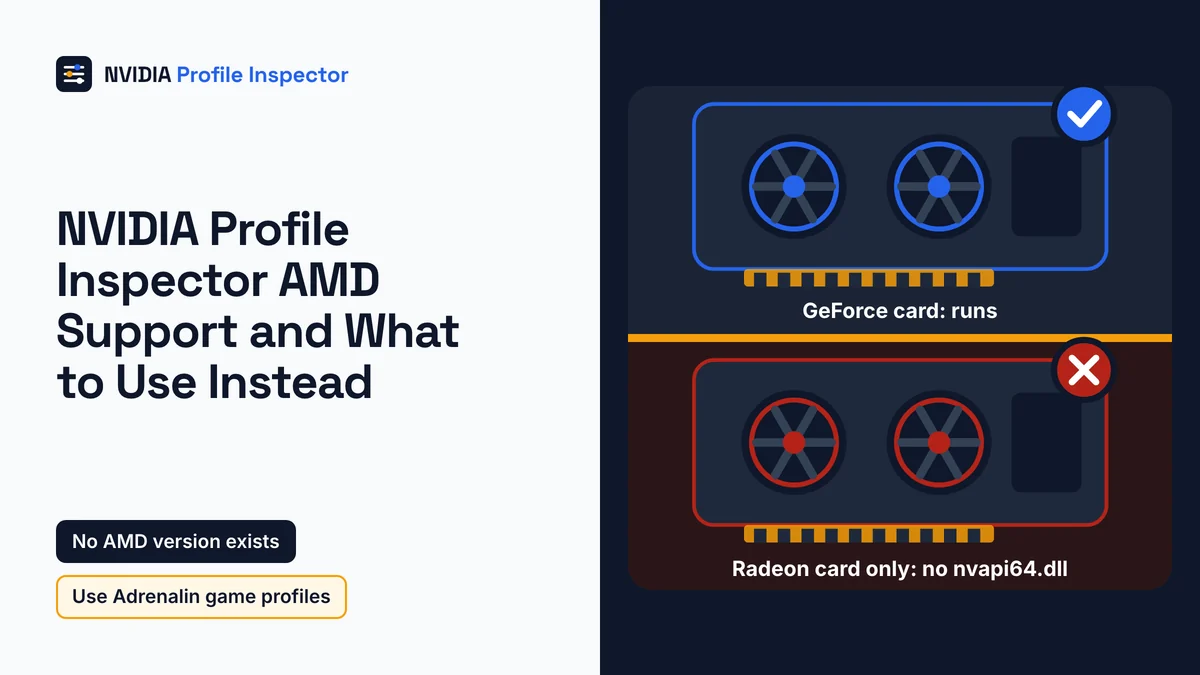
NVIDIA Profile Inspector AMD support does not exist, because the tool first loads NVIDIA's own driver library and stops when no NVIDIA driver answers. Radeon and Intel-only graphics both fail that check. No AMD version exists, and the developer turned down a request for one. A PC with an Intel or AMD processor plus an NVIDIA card runs it fine. Radeon owners get most of the same controls in AMD Software: Adrenalin Edition.
Does NVIDIA Profile Inspector work with AMD?
No, NVIDIA Profile Inspector does not work with AMD graphics: its first job at startup is to load nvapi64.dll, NVIDIA's driver API file, and call NvAPI_Initialize. Only an installed NVIDIA driver puts that file on your PC, so on a Radeon-only system the profile functions never connect.

Running the tool as admin, reinstalling it or grabbing an older build changes nothing. The program exists to edit the profile database inside NVIDIA's driver, which is covered in what NVIDIA Profile Inspector is and who makes it. Without that driver, the database is not on your disk at all.
Intel-only PCs fail the same way, with a startup error users have reported: The type initializer for 'nspector.Common.DrsServiceLocator' threw an exception. Issues #167 and #325 both show it, the second on a Windows 11 PC with Intel UHD graphics. The same text can appear on a GeForce PC for unrelated reasons, so NVIDIA owners should look at other causes of the DrsServiceLocator startup error.
The developer settled the AMD question himself. When a user in issue #104 asked for a similar tool for AMD, Orbmu2k's reply to the AMD request was "nope sorry", posted on November 13, 2022. He closed the issue the same day. Videos that promise an NVIDIA Profile Inspector AMD fix cannot change a Radeon card's settings.
Will NVIDIA Profile Inspector work on my PC?
Check the graphics card, not the processor. Any Windows PC with an NVIDIA card and NVIDIA's driver runs the tool; a PC whose only graphics chip is AMD, Intel or Apple does not.

| Your PC | Runs Profile Inspector? | Why | Use instead |
|---|---|---|---|
| Radeon card only, Windows | No | No NVIDIA driver, so no nvapi64.dll | AMD Software: Adrenalin Edition game profiles |
| Intel UHD, Iris Xe or Arc only | No | Same driver check; DrsServiceLocator error reported | Intel Graphics Software |
| Laptop with Intel or AMD processor graphics plus an NVIDIA GPU | Yes | The NVIDIA driver is installed for the NVIDIA chip | The tool, on the game's profile |
| Desktop with an AMD Ryzen or Intel CPU and a GeForce card | Yes | The rule is about the graphics card and driver, not the CPU | The tool as normal |
| Linux with a GeForce card | No | Windows-only program | Proton launch options |
| Linux with a Radeon card | No | No NVIDIA driver | No driver profile editor; use each game's own settings |
| Intel Mac with an NVIDIA chip in Boot Camp | Possibly, in Windows only | Needs Windows plus an NVIDIA driver; for very old drivers, the developer points to an older 2.x release (#116) | Windows through Boot Camp only |
| Apple silicon Mac | No | Boot Camp runs on Intel Macs only | None |
Hybrid laptops are what NVIDIA calls Optimus: the processor's graphics paired with a GeForce chip. The driver even stores rows for them, such as Shim Rendering Mode Options Per Application For Optimus in the tool's Reference.xml. Leave that row exactly as the driver set it.
If a GeForce card joins the PC later, the tool opens as soon as the NVIDIA driver is installed. Then set each game's values in the tool, starting with which Profile Inspector settings are worth changing.
Check what graphics your laptop has
Open Device Manager and expand Display adapters. An NVIDIA GeForce or RTX chip next to the Intel or AMD one means the tool opens and edits the NVIDIA driver's game profiles. If only Intel shows, nothing you install will make it work.
Is there an AMD version on GitHub?
No working AMD fork of the tool exists. The repository named "AMDProfileInspector" is a fork of Orbmu2k's project with no commits of its own and no releases, so it holds the same NVIDIA-only code.
The fork's one-line description claims it works for AMD, yet its README still describes the database inside the NVIDIA driver, copied from the original. Any "NVIDIA Profile Inspector AMD" download you find elsewhere is a renamed copy or an unrelated tool, and no Intel build exists either. A fork only counts if it loads AMD's driver instead of nvapi64.dll. A Steam thread asking for an AMD equivalent points to RadeonMod and RadeonPro, and a later reply there dismisses both as abandoned tools from the Windows XP era.
Radeon GPU Profiler, which often tops searches for an AMD profile inspector, is a different kind of tool. AMD describes it as a low-level optimization tool that shows game developers how their DirectX 12, Vulkan, OpenCL or HIP code runs on the GPU. It is a developer profiler and changes no game or driver settings.
An edited copy fails a SHA-256 check against Orbmu2k's release on GitHub Releases, the same zip this site serves. PowerShell's Get-FileHash runs that check, as shown in how to tell a genuine download from a copy.
NVIDIA Profile Inspector AMD equivalent in Adrenalin
Per-game profiles in AMD Software: Adrenalin Edition are the closest AMD equivalent to Profile Inspector. Each game profile starts from the Global Graphics settings and overrides them for that game only, the same global and per-game split Profile Inspector uses.

Open the Gaming tab, where AMD Software lists the games it found by itself. A missing game goes in through the vertical ellipsis menu: choose Add A Game and point it at the .exe file. To undo a change, set the control back to the value shown in Global Graphics. Frame Rate Target Control sets a maximum FPS in full screen games; on a GeForce PC that cap is set with the Frame Rate Limiter V3 values and hex codes.
Each Profile Inspector row below sits next to the Adrenalin control that AMD's support pages name for the same job.
| Profile Inspector setting | Adrenalin control | Difference to know |
|---|---|---|
Frame Rate Limiter V3 | Frame Rate Target Control (Advanced) or Radeon Chill | Frame Rate Target Control works in full screen; Chill uses a min and max FPS range |
Ultra Low Latency - Enabled | Radeon Anti-Lag | AMD says Anti-Lag and Chill cannot be on at the same time |
Anisotropic Filtering - Setting | Anisotropic Filtering Level | AMD lists 2x, 4x, 8x and 16x |
Texture Filtering - Quality | Texture Filtering Quality | Standard, High or Performance |
Sharpening Filter - Enabled | Radeon Image Sharpening | Listed with AMD's global graphics features |
Vertical Sync | Wait for Vertical Refresh, Enhanced Sync | AMD lists both as separate controls |
DLSS - Forced Preset Letter | AMD FSR Upscaling toggle | ML upscaling needs an RX 6000 desktop card or newer; no preset letters |
rBAR - Enable | Smart Access Memory | Not in the per-game list |
Shader Cache - Cache Size | Reset Shader Cache | No cache size control in AMD's list |
Hidden driver rows, raw hex values and DLSS preset letters have no AMD match, because they only exist in NVIDIA's profile database. AMD's FSR page also notes that FSR 4 has been renamed FSR Upscaling, so older guides use the old name. On GeForce, the Anti-Lag row maps to Ultra Low Latency - Enabled plus Maximum Pre-Rendered Frames, both explained under Ultra Low Latency and V-Sync on GeForce cards.
Smart Access Memory is AMD's name for Resizable BAR, and AMD's game profile list has no switch for it. GeForce owners can force Resizable BAR one game at a time instead.
Intel alternative to NVIDIA Profile Inspector
Intel Graphics Software is the Intel-only PC's answer, with profile configurations for each application. Intel's product page and its May 30, 2025 driver notes name these controls.
| Profile Inspector setting | Intel Graphics Software | Difference to know |
|---|---|---|
| A game's own profile | Profile configurations for each application | Set per application, as Intel's product page describes |
Frame Rate Limiter V3 | FPS Limiter | Intel's May 30, 2025 driver notes say it may not cap with VSync and Low Latency Mode both on |
Vertical Sync | Frame synchronization | Intel lists it for legacy DirectX 9 and 11 games |
Ultra Low Latency - Enabled | Low latency mode | Also listed for legacy DirectX 9 and 11 games |
Sharpening Filter - Enabled | Image sharpening controls | No per-value match is published |
Intel's driver notes also warn that profile controls may not always override global ones, so check a game's own profile after you set it.
NVIDIA Profile Inspector on Linux
NVIDIA Profile Inspector runs on no Linux distribution, and Wine or Proton cannot give it a real driver profile store to edit. Linux GeForce owners can still get its DLSS preset override from environment variables NVIDIA documents for Proton games.
NVIDIA's Linux driver does keep per-game application profiles of its own, in ~/.nv/nvidia-application-profiles-rc, and nvidia-settings can edit them. Appendix J of NVIDIA's 580.95.05 Linux driver README says these profiles only work with its GLX implementation, the OpenGL side. They never reach the Vulkan or DirectX games you play through Proton.
Proton launch options for DLSS presets
Add these variables to the game's launch options in Steam to make Proton use the latest DLSS preset. The names and values come from NVIDIA's Linux gaming guide.

| Variable | Value | What it does |
|---|---|---|
PROTON_ENABLE_NGX_UPDATER | 1 | Lets Proton fetch newer DLSS files |
DXVK_NVAPI_DRS_NGX_DLSS_SR_OVERRIDE | on | Turns on the Super Resolution override |
DXVK_NVAPI_DRS_NGX_DLSS_SR_OVERRIDE_RENDER_PRESET_SELECTION | render_preset_latest | Picks the newest preset |
Type the three variables in Steam's usual format, as NAME=value pairs with spaces between them and %command% at the end. NVIDIA warns that older Proton releases may not include every preset. To confirm the preset in game, use the Proton DLSS indicator variables.
DXVK-NVAPI, the project Proton uses to provide NVAPI, also accepts raw driver setting IDs. Its own example uses 0x10E41DF3, the ID Profile Inspector shows as DLSS - Forced Preset Letter. On Windows, the same job falls to the Windows DLSS preset override.
These launch options only cover Windows games running under Proton; for native Linux games, NVIDIA says presets cannot be overridden for now. To undo it, delete the line from Launch Options.
Radeon owners on Linux cannot use this route. By default DXVK-NVAPI does not load on other GPUs; even when forced with DXVK_NVAPI_ALLOW_OTHER_DRIVERS=1, it reports a Pascal-era GPU so games never try to start DLSS. Smooth Motion has a separate switch, covered under Smooth Motion on Linux.
FAQ
Is there an AMD equivalent of DLSS override?
Partly. AMD Software has an AMD FSR Upscaling toggle, plus AMD FSR Frame Generation, under Gaming then Graphics. AMD says the toggle swaps DLLs in games with FSR 3.1 or higher built in, and ML frame generation needs FSR 3.1.4 or newer. You pick no preset letter, unlike DLSS.
Can NVIDIA Profile Inspector run through Wine or Proton?
No. On August 31, 2021, in issue #83, Orbmu2k wrote that, to his knowledge, the Linux driver has "no real NVAPI module or DRS options". The DXVK-NVAPI project also discourages using its files on Windows, so never copy them into a Windows game folder.
How do you turn Radeon Chill off mid-game?
Press F11, the default Radeon Chill hotkey in AMD Software, to switch it on or off without leaving the game. Chill holds a game between a minimum and maximum frame rate you choose, anywhere from 30 to 300 FPS, and each game's Adrenalin profile can keep its own range.
Does NVIDIA Profile Inspector work on a Mac?
Not on macOS, because it is a Windows program built on .NET Framework 4.8. Only an Intel Mac with an NVIDIA chip, running Windows 10 through Boot Camp, could start it. NVIDIA lists CUDA 10.2 as the last toolkit and driver release to support macOS.
Do the "NVIDIA Profile Inspector on AMD" videos work?
No. The tool needs the NVIDIA driver's profile store, so it can only edit profiles on a PC with an NVIDIA card. The AMDProfileInspector fork runs the same NVIDIA-only code, 263 commits behind on November 1, 2026, and the hidden -mock switch only fakes a Base Profile that reaches no driver.
Conclusion
Whether the tool runs depends on the graphics card, never the processor. A GeForce card with NVIDIA's driver works in an AMD Ryzen or Intel PC, while Radeon-only and Intel-only PCs cannot open it at all.
Radeon owners get the closest match from per-game profiles on the Gaming tab of AMD Software: Adrenalin Edition, and Intel-only owners from Intel Graphics Software. AMD offers Reset Shader Cache but no size control, so picking a shader cache size still needs a GeForce card.