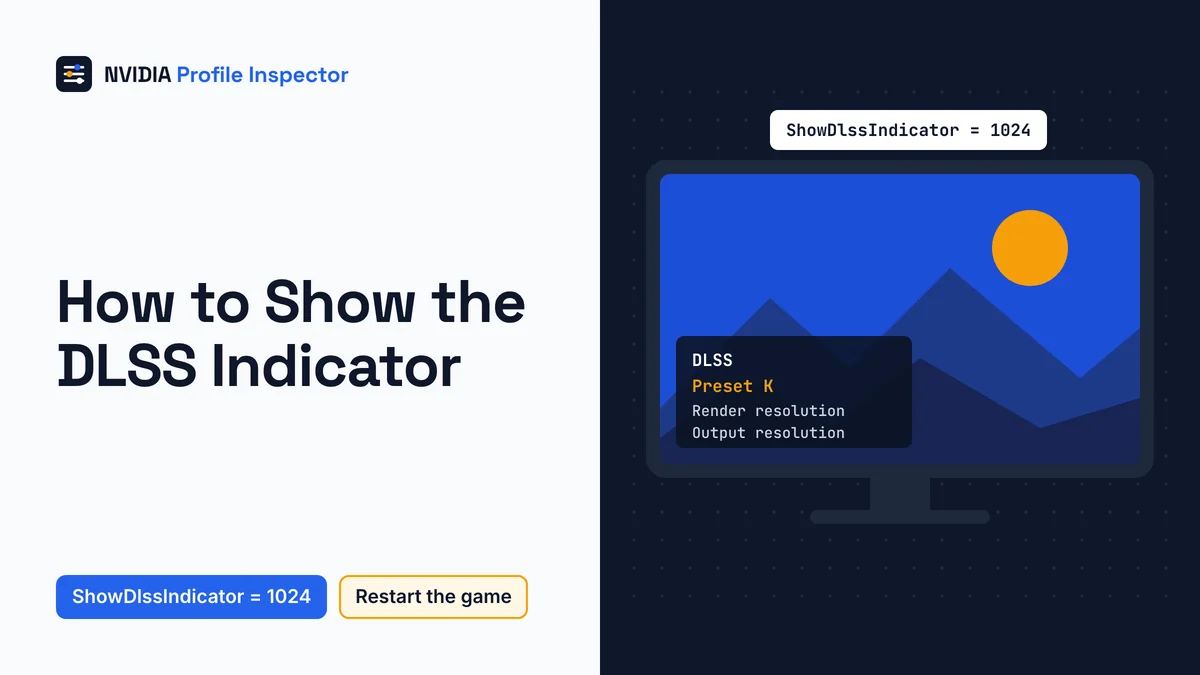
To show the DLSS indicator, add a DWORD named ShowDlssIndicator with the value 1024 to the NVIDIA Corporation\Global\NGXCore key in HKEY_LOCAL_MACHINE, then restart the game. Once DLSS runs, a small block of text appears at the bottom of the screen with details such as the current preset. Set the value to 0 to hide it again. Profile Inspector has no switch for this overlay, so the edit happens in Registry Editor.
What the on-screen overlay shows
The DLSS indicator is a few lines of text that NVIDIA's DLSS runtime (NGX) draws near the bottom of the screen while a game runs DLSS. Its most useful line is the current preset, the quickest proof that an override took.
NVIDIA's Linux guide puts it at the bottom of the screen, and a DLSS Swapper #323 user places it in the bottom-left corner. Users report these lines on the overlay:
| Line | What it tells you |
|---|---|
| Preset | The model letter the game loaded, as the DLSS Swapper #323 user describes it |
| Render resolution | The size DLSS draws at before upscaling, per PC Gamer |
| Output resolution | The size it upscales to |
| DLSS version and API | Which DLSS file and graphics API run |
The preset line holds a letter, and that letter is the DLSS model the game loaded. K, L and M are transformer models, while A to F are CNN models, as what each DLSS preset letter means sets out. When you force a letter in NVIDIA Profile Inspector, the line should show that same letter.
Add the ShowDlssIndicator value in regedit
Add a DWORD named ShowDlssIndicator with the value 1024 under the NGXCore key in regedit, then restart the game. You can type it in by hand in four steps or import it from a .reg file.

Step 1: Open the NGXCore key
Press Win+R, type regedit, press Enter and accept the admin prompt. Paste this path into the address bar at the top and press Enter.
HKEY_LOCAL_MACHINE\SOFTWARE\NVIDIA Corporation\Global\NGXCore
The key lives in HKEY_LOCAL_MACHINE, so the value covers every user and every game on the PC. To keep a backup, right-click NGXCore and pick Export first.
Step 2: Create the ShowDlssIndicator DWORD
Right-click an empty spot in the right pane and choose New > DWORD (32-bit) Value. Name it ShowDlssIndicator, with the same capital letters NVIDIA uses in its DLSS SDK file. If a value with that name already exists, a .reg file or DLSS Swapper probably made it earlier. Edit that one rather than adding a second.
Step 3: Set the value to 1024
Double-click ShowDlssIndicator, switch Base to Decimal, type 1024 and click OK. On Hexadecimal, type 400 instead, because it is the same number. Skip the value 1 that many guides give, because it works only with debug DLSS files.
Step 4: Restart the game and check the bottom
A DLSSTweaks developer notes in DLSSTweaks issue #139 that the value is read when a game starts, so an edit made mid-game does nothing until you relaunch. Turn DLSS on in the game's graphics menu, because the overlay only appears with DLSS active.
Import a .reg file instead
Windows Registry Editor Version 5.00

[HKEY_LOCAL_MACHINE\SOFTWARE\NVIDIA Corporation\Global\NGXCore]
"ShowDlssIndicator"=dword:00000400
Save those lines as a .reg file and double-click it, then restart the game as in Step 4. Issue #493 on Profile Inspector suggests the same value.
Use one reg add command
Open Command Prompt as administrator, paste this line and press Enter.
reg add "HKLM\SOFTWARE\NVIDIA Corporation\Global\NGXCore" /v ShowDlssIndicator /t REG_DWORD /d 1024 /f
The quotes are there because the path has spaces. Per Microsoft's reg add reference, /f writes the value without a confirmation prompt. Run the same line with /d 0 to hide the overlay again. Open regedit once afterward and confirm the value reads 1024 with Base set to Decimal.
Which ShowDlssIndicator registry value to use
Set ShowDlssIndicator to 1024 (0x400) to show the DLSS overlay with the DLSS files games ship. The value 1 works only with development or debug DLSS files, and 0 turns it off.

| Value | Hex | What it does | Notes |
|---|---|---|---|
| 0 | 0x0 | Overlay off | NVIDIA's SDK file ngx_driver_onscreenindicator_off.reg writes this |
| 1 | 0x1 | Overlay for development or debug DLSS files only | NVIDIA's SDK file ngx_driver_onscreenindicator.reg writes this, so most retail games show nothing |
| 1024 | 0x400 | Overlay with the DLSS files games ship | The value to type for normal play |
Why do so many copied guides fail? NVIDIA's DLSS SDK ships ngx_driver_onscreenindicator.reg, a file that writes 1, and guides that give 1 match that file. In DLSS Swapper issue #323, the maintainer explained that 1 is meant for debug DLSS DLLs. Checked November 7, 2026: NVIDIA's DLSS SDK, now at release 310.9.16, still ships that file with the value 1. The ShowDlssIndicator value only turns the overlay on or off and never picks a preset, so the letter is still forced in Profile Inspector.
Other ways to check DLSS status
Besides the registry overlay, the NVIDIA App's Statistics View > DLSS and Profile Inspector's stored letter both show DLSS status. Profile Inspector's stored letter shows the preset you asked for, not the one the game loaded. NVIDIA's own January 2026 DLSS 4.5 notes tell App users to confirm the model in the App's Statistics View > DLSS. Per the August 2025 App article, that display shows "the status of DLSS, and whether NVIDIA app DLSS overrides are activated in-game".

The August 2025 NVIDIA App update added this DLSS view. Press Alt+Z to open the App overlay, pick Statistics at the bottom of its sidebar, then Statistics View > DLSS. Once that is set up, Alt+R turns the display on or off in game.
The three ways to read DLSS status compare like this.
| Method | What it tells you | What you need | Limits |
|---|---|---|---|
Registry overlay (ShowDlssIndicator = 1024) | Preset line plus other DLSS details, on screen | Registry Editor, a game restart | Preset line can vanish with Ray Reconstruction on (user report, DLSS Swapper #323) |
| NVIDIA App overlay | DLSS status, App override status and the model (NVIDIA, January 14, 2026) | NVIDIA App installed; Alt+Z to set up, Alt+R to toggle | Built for App overrides; use the registry overlay for a letter forced in Profile Inspector |
| Profile Inspector | The letter stored in DLSS - Forced Preset Letter (0x10E41DF3) | The tool | No indicator switch |
A request to add an overlay switch to Profile Inspector, issue #493, has been open since July 21, 2026.
DLSS Swapper also has an on-screen indicator toggle. The DLSS Swapper maintainer fixed the indicator toggle in v1.1.4, and turning the toggle off sets the value back to 0. Picking which tool sets the override at all is a separate choice, covered in how the NVIDIA App overrides compare with Profile Inspector.
DLSS indicator not showing or wrong preset
A missing DLSS indicator usually means ShowDlssIndicator is 1 instead of 1024, or the game was not restarted after the registry edit. A missing or unexpected preset line points to Ray Reconstruction or to an override the game did not take.

| What you see | Likely cause | Fix |
|---|---|---|
| No overlay at all | Value is 1 (debug DLLs only) or 0 | Set ShowDlssIndicator to 1024 decimal |
| No overlay after editing mid-game | Value is read at launch | Quit and relaunch the game |
| No overlay, value is 1024 | DLSS not active in the game | Turn DLSS on in the game's graphics menu |
| Overlay without a preset line | Ray Reconstruction on (user report, DLSS Swapper #323) | Turn Ray Reconstruction off for a moment to read the preset |
| A different preset than you forced | Override not applied to this game | Fix the override on the game's profile |
| A message that the render preset override value 0x5 is invalid | A forced Preset E (0x5) the game's DLSS file rejects | Try another letter or N/A |
In STAR WARS Jedi: Survivor, a Steam player reported a message that the "DLSS Render preset override value" (typed as "ox5") "is invalid". If you forced a letter in Profile Inspector, 0x5 there is Preset E (CNN).
A letter on screen that differs from the one you forced means the override never reached the game, so go back and fix the rows saved on the game's profile. If the tool itself acts up, start with the fixes for Profile Inspector errors or settings that will not save.
Overlay setup on Linux and Proton
On Linux the DLSS indicator is turned on with environment variables, not the registry. NVIDIA's driver installation guide lists __NGX_SHOW_INDICATOR=1024 for native titles and DXVK_NVAPI_SET_NGX_DEBUG_OPTIONS=DLSSIndicator=1024,DLSSGIndicator=2 under Proton.
Turn the indicator on only for the game you want to check. Under Proton, NVIDIA says the values are written into the wineprefix registry and persist there. To clear the wineprefix values, start the game once with DLSSIndicator=0,DLSSGIndicator=0.
Proton can also force the newest DLSS preset through launch variables, listed in what works on AMD, Intel and Linux.
How to turn the overlay off
Set ShowDlssIndicator back to 0 in the same NGXCore key and restart the game, and the overlay is gone on Windows. NVIDIA's own SDK off file, ngx_driver_onscreenindicator_off.reg, writes that exact value.
| How you turned it on | How to turn it off |
|---|---|
| Registry Editor or a .reg file | Set ShowDlssIndicator to 0, restart the game |
| DLSS Swapper toggle | Turn the toggle off (sets the value back to 0) |
| Linux native | Start the game without __NGX_SHOW_INDICATOR |
| Proton | Launch once with DLSSIndicator=0,DLSSGIndicator=0 |
| NVIDIA App statistics | Press Alt+R to toggle the statistics display |
Hiding the overlay leaves your forced preset in place. To undo the preset as well, reset the preset letter in Profile Inspector.
FAQ
How do I know if DLSS override is working?
Turn on the DLSS indicator and read its preset line in each DLSS mode you play. The letter should match the one you forced in every mode. A different letter in one mode means the override missed that mode, which points back to the rows saved on the game's profile.
Does the overlay show Frame Generation too?
A DLSSTweaks developer note says Frame Generation reads the same ShowDlssIndicator value on Windows, so one registry edit covers both. On Proton, NVIDIA lists a separate DLSSGIndicator=2 entry for it. Smooth Motion is a driver feature rather than DLSS, so it gets its own check through Smooth Motion's Debug Bars.
Can Profile Inspector turn on the DLSS overlay?
No. Profile Inspector's settings file has indicator rows for G-SYNC, FXAA, PhysX, flips and multi-plane overlays, but none for DLSS, the gap issue #493 asks to fill. Those rows are listed with their IDs in the full Profile Inspector settings list.
Do I need to reboot after the registry change?
A game restart is the step the value needs, since the DLSS runtime reads it at launch. Try a full reboot only if the overlay still stays hidden after you relaunch the game with DLSS turned on and the value reads 1024 in Decimal.
Should I type 1024 or 400 in regedit?
In regedit, 1024 in Decimal and 400 in Hexadecimal are the same number. Type 1024 when Base is set to Decimal, or 400 when it is set to Hexadecimal. Typing 400 while Decimal is selected stores the number 400, not 1024, so check the Base setting before you click OK.
Conclusion
One registry value does the whole job: ShowDlssIndicator at 1024 under the NGXCore key, followed by a game restart with DLSS switched on. Leave the value 1 from copied guides alone, since only debug DLSS files respond to it.
Next, read the preset line in each DLSS mode you play. When that letter differs from your pick, make the forced preset letter stick, then set the value back to 0 to hide the text.