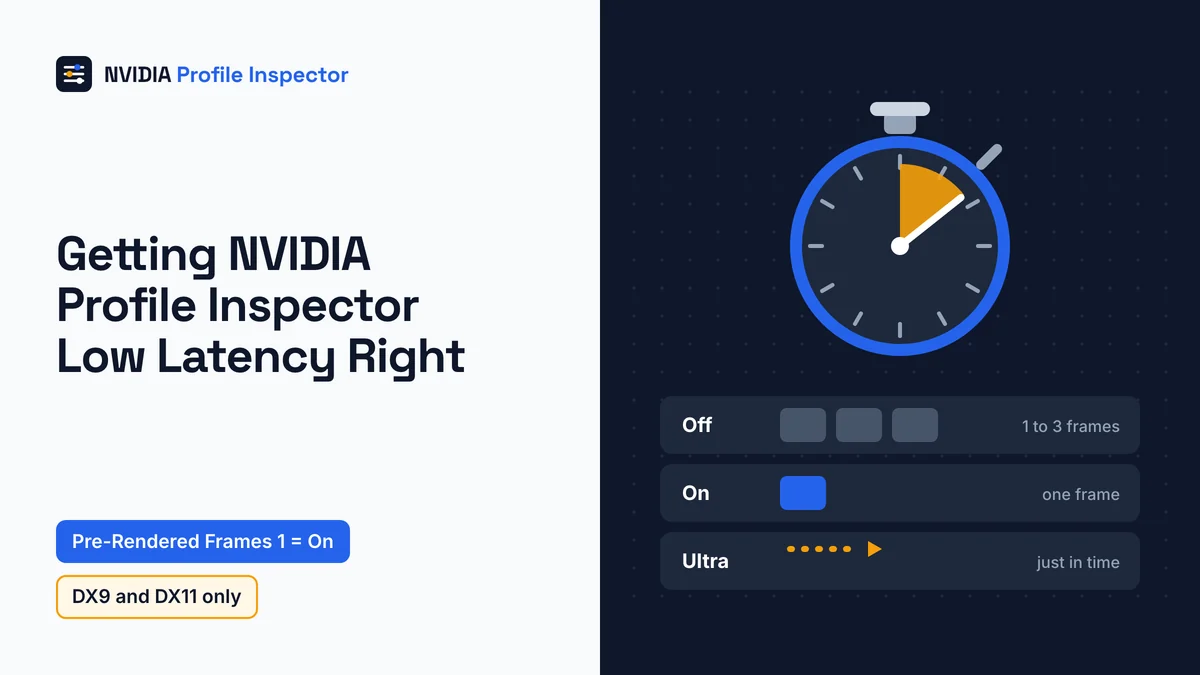
NVIDIA Profile Inspector low latency is two rows: set Maximum Pre-Rendered Frames to 1 for Control Panel On, and add Ultra Low Latency - Enabled at On for Ultra. Both work only in DX9 and DX11 games, and Reflex overrides the Ultra row. On a G-SYNC screen, Vertical Sync at Force on with Reflex or Ultra Low Latency caps FPS just under the refresh rate. GSYNC - Application State at Force Off turns G-SYNC off for one game.
NVIDIA Profile Inspector low latency settings
Low latency mode changes when the CPU hands frames to the GPU. NVIDIA's 2019 driver post says that with Off, a game's engine queues 1 to 3 frames. On holds the queue to one, and Ultra submits each frame just in time for the GPU.

NVIDIA Profile Inspector low latency control is split across two rows in group 02 - Sync and Refresh: Maximum Pre-Rendered Frames and Ultra Low Latency - Enabled. Together they replace the Control Panel's one Low Latency Mode dropdown.
A repo collaborator spelled out the On and Ultra rows in GitHub issue #318. The Off row puts both rows back on their undo values.
| Control Panel label | Profile Inspector row | Value | Hex |
|---|---|---|---|
| Low Latency Mode Off | Maximum Pre-Rendered Frames and Ultra Low Latency - Enabled | Use the 3D application setting, Off | 0x00000000, 0x00000000 |
| Low Latency Mode On | Maximum Pre-Rendered Frames | 1 | 0x00000001 |
| Low Latency Mode Ultra | Maximum Pre-Rendered Frames plus Ultra Low Latency - Enabled | 1, On | 0x00000001, 0x00000001 |
A third row, Ultra Low Latency - CPL State, looks like the main switch. Skip it: the XML describes it as a record of the Control Panel's choice, with "No need to change it".
Keep every latency change on one game, where it cannot spill into other titles; the profile box and Apply Changes basics show how to open that game's profile. The NVIDIA App edits the same driver profiles, so a value that keeps flipping back may come from when the NVIDIA App and Profile Inspector disagree.
Low latency mode On or Ultra?
Start low latency mode at On. If frame times get worse, go back to Off; try Ultra only in a DX9 or DX11 game. NVIDIA's Control Panel help says On limits queued frames to one, while Ultra puts latency first by "fully minimizing queued frames".

NVIDIA's 2019 driver announcement adds the condition that matters most. You feel the gain when the graphics card is the bottleneck and the counter reads somewhere from 60 to 100 FPS. The settings page's starting values sort the rest of group 02 by goal, from more FPS to laptop battery life.
Ultra has one known trap. In GitHub issue #318, a windowed app at 900 to 1000 FPS showed a frame-time problem with Ultra Low Latency - Enabled On until pre-rendered frames went to 1. One Steam player found pre-rendered frames at 1 caused stutter in some games and called it "not a set and forget setting", so test it game by game. The Off row of the mapping table undoes either choice.
Does low latency mode work in your game?
Ultra Low Latency - Enabled does nothing once the game runs NVIDIA Reflex, because NVIDIA's system latency guide says Reflex overrides Ultra Low Latency when both are on. The rows also do nothing in DX12 or Vulkan games, which set their own queue length.

Reflex itself has no row in the tool's settings file, so you switch it on only in the game's own menu. Six common setups decide which latency or sync row still does anything.
| Your case | What to set | Why |
|---|---|---|
| The game has a Reflex option | Reflex in the game menu; leave Ultra Low Latency - Enabled at Off | NVIDIA says Reflex overrides Ultra Low Latency and works from inside the game |
| DX12 or Vulkan game | Leave both queue rows alone | The game decides the queue, not the driver |
| Windowed or borderless window | The game's own V-Sync, with Vertical Sync at Use the 3D application setting | Driver V-Sync On is fullscreen only |
| G-SYNC display | Vertical Sync at Force on, plus Reflex or Ultra Low Latency | The driver then caps FPS just below the refresh rate |
| MS Hybrid laptop | The game's own V-Sync | NVIDIA's latency guide says to use in-game V-Sync on these laptops |
| Smooth Motion is on | Check Ultra Low Latency - Enabled after you switch Smooth Motion on | A user in issue #377 reports the tool does not add the Ultra step the NVIDIA App sets; see Smooth Motion |
Fortnite, Counter-Strike 2 and VALORANT are among the shooters NVIDIA lists with Reflex built in, so with Reflex on there, leave Ultra Low Latency - Enabled at Off.
Maximum Pre-Rendered Frames and Ultra Low Latency values
Maximum Pre-Rendered Frames (ID 0x007BA09E) accepts Use the 3D application setting or a whole number from 1 to 8. Ultra Low Latency - Enabled (ID 0x10835000) is a plain Off or On and needs driver 430.00 or newer.
| Row | ID | Values (hex) | Min driver | Undo value |
|---|---|---|---|---|
Maximum Pre-Rendered Frames | 0x007BA09E | Use the 3D application setting 0x00000000; 1 to 8 as 0x00000001 to 0x00000008 | None listed | Use the 3D application setting |
Ultra Low Latency - Enabled | 0x10835000 | Off 0x00000000; On 0x00000001 | 430.00 | Off |
Ultra Low Latency - CPL State | 0x0005F543 | Off 0x00000000; On 0x00000001; Ultra 0x00000002 | 430.00 | Leave it untouched |
The XML says the first row "Sets the maximum number of frames the CPU may queue ahead of GPU execution". NVIDIA's help says the driver cuts latency by limiting how many frames the CPU can prepare. To back out, put each row on its undo value, or reset one setting to its default without touching the rest of the profile.
How to check the change
Test a low latency setting by playing the same scene twice, once with both queue rows at Off and once at your new value. Judge the result by frame times and latency, not the FPS counter.
NVIDIA FrameView logs frame rates and frame times, and NVIDIA says it works with all major graphics APIs. Expect the counter to read a little lower with On or Ultra, because NVIDIA's help describes Off as the mode that favors throughput. Bigger frame-time spikes after the change are your cue to go back to Off. Stutter that the queue rows do not explain may come from shader compiling instead, which the shader cache size choices address. NVIDIA's latency guide adds two latency readouts. A performance overlay can show Render Latency for any game, and Reflex games report their own Game and Render latency in the menu.
When the queue rows do nothing
Check that Maximum Pre-Rendered Frames sits at 1 before anything else. When an NVIDIA Profile Inspector low latency, G-SYNC or present method row seems to do nothing, GitHub issues #318, #59 and #445 point to likely causes. Each one comes from one user's system.
| Symptom | Condition | What helped |
|---|---|---|
| Frame-time problem with Ultra Low Latency | Enabled On without pre-rendered frames at 1, windowed, 900 to 1000 FPS (#318) | Set Maximum Pre-Rendered Frames to 1 |
| Stutter with V-Sync | Pre-rendered frames at 1 plus V-Sync (#318) | No fix posted |
| G-SYNC off in borderless window | Path of Exile on DX11, Fullscreen and Windowed mode (#59) | Switch the game to Vulkan |
| OpenGL game keeps going into exclusive fullscreen | Flags values were missing from a 3.0 pre-release list, since fixed (#445) | DISABLE_FULLSCREEN_OPT (0x00000001) in the present method Flags row |
Two old reports cover the fractions. 1/2 Refresh Rate sometimes needed a PC restart to take hold (#48). 1/4 did nothing on one 240 Hz laptop, and no fix was posted (#162). If every row matches and a value still slips back, look into why settings do not apply or reset after a driver update.
NVIDIA Profile Inspector V-Sync values
The Vertical Sync row (ID 0x00A879CF) has seven values: Force off, Force on, Fast Sync, three refresh-rate fractions, and Use the 3D application setting. That last value hands V-Sync back to the game, so it is the one to undo with.
| Value | Hex | What it does |
|---|---|---|
| Force off | 0x08416747 | V-Sync off; NVIDIA's help says Off suits players who put performance ahead of image quality |
| Force on | 0x47814940 | V-Sync on to stop tearing; fullscreen games only |
| Fast Sync | 0x18888888 | Lower latency without tearing; Pascal or newer, single GPU |
| Use the 3D application setting | 0x60925292 | The game's own V-Sync choice applies |
| 1/2 Refresh Rate | 0x32610244 | V-Sync at half the refresh rate |
| 1/3 Refresh Rate | 0x71271021 | V-Sync at a third of the refresh rate |
| 1/4 Refresh Rate | 0x13245256 | V-Sync at a quarter of the refresh rate |
Windowed and borderless players should use the game's own toggle, because NVIDIA's latency guide says driver V-Sync On only works for fullscreen applications. The same guide says V-Sync "causes back pressure from the display": frames wait for the screen, and your input waits with them. Triple Buffering (0x20FDD1F9) is a separate row that NVIDIA's help ties to OpenGL games running with V-Sync, so DirectX players can ignore it.
Where is Adaptive V-Sync?
Adaptive V-Sync sits on its own row, not in the Vertical Sync list. It lives in Vertical Sync - Tear Control (ID 0x005A375C), which needs driver 300.00 or newer. That row has two values: Standard 0x96861077 and Adaptive 0x99941284.
According to NVIDIA's help, Adaptive turns V-Sync on only while the frame rate is higher than the refresh rate. It is available only when Monitor Technology is set to ULMB or Fixed Refresh Rate, so it does not apply while G-SYNC runs. For the Control Panel's "Adaptive 1/2 refresh rate", use the Control Panel itself. To undo, set Tear Control back to Standard.
Should V-Sync be on with G-SYNC?
Yes, keep V-Sync On with a G-SYNC display while you use Reflex or Ultra Low Latency, as NVIDIA's latency guide says. The driver then holds the frame rate just under the refresh rate.

That automatic cap is why the FPS counter stops short of your monitor's refresh rate, and it is expected behavior, not a fault. NVIDIA notes that this route has slightly higher latency than Reflex running uncapped, and asks for exclusive fullscreen wherever the game offers it. For the exact number to cap at by hand, use the G-SYNC cap table for Frame Rate Limiter V3.
G-SYNC "Requires a G-SYNC capable display", in the words of NVIDIA's help, which also says the preferred refresh rate control is disabled while variable refresh rate is on. A G-SYNC game therefore gains nothing from setting Prefered Refreshrate (the XML's spelling) to Highest available. If you already changed it, Use the 3D application setting puts it back.
G-SYNC settings in Profile Inspector
Seven GSYNC rows exist: five that control G-SYNC and two on-screen overlays. The XML describes GSYNC - Global Feature as the switch that enables G-SYNC support, while the Application rows set the mode and state a game receives. All need driver 331.00 or newer except the Support Indicator row, which lists no minimum.
| Row | ID | Values (hex) | What it does |
|---|---|---|---|
GSYNC - Global Feature | 0x1094F157 | Off 0x00000000; On 0x00000001 | Turns G-SYNC support on or off for the profile |
GSYNC - Global Mode | 0x1094F1F7 | Off 0x00000000; Fullscreen only 0x00000001; Fullscreen and Windowed 0x00000002 | Sets the G-SYNC mode for the profile |
GSYNC - Application Mode | 0x1194F158 | Off 0x00000000; Fullscreen only 0x00000001; Fullscreen and Windowed 0x00000002 | Sets the mode the game is told it has |
GSYNC - Application State | 0x10A879CF | Allow 0x00000000; Force Off 0x00000001; Disallow 0x00000002; Utra Low Motion Blur 0x00000003; Fixed Refresh Rate 0x00000004 | Sets the G-SYNC state applied while the profile is active |
GSYNC - Application Requested State | 0x10A879AC | Same five values as Application State | Holds the state the game itself asked for |
GSYNC - Indicator Overlay | 0x10029538 | Off 0x00000000; On 0x00000001 | Shows whether G-SYNC is active right now |
GSYNC - Support Indicator Overlay | 0x008DF510 | Off 0x00000000; On 0x00000004 | Shows whether the current present path supports G-SYNC |
"Utra Low Motion Blur" is the XML's own spelling. Watch the IDs too: GSYNC - Application State (0x10A879CF) and Vertical Sync (0x00A879CF) differ by one digit, so copy them rather than typing.
How to disable G-SYNC for one game
To turn G-SYNC off for one game, open its profile and set GSYNC - Application State to Force Off (0x00000001). Leave both Global rows alone, and every other game keeps G-SYNC.
For borderless or windowed G-SYNC, the GitHub issue #59 reporter set both GSYNC - Global Mode and GSYNC - Application Mode to Fullscreen and Windowed (0x00000002). It still failed in Path of Exile's DX11 renderer until the game switched to Vulkan. To undo the per-game switch, set Application State back to Allow.
Vulkan/OpenGL present method
Most players can leave Vulkan/OpenGL Present Method (ID 0x20D690F8) alone. It chooses whether a Vulkan or OpenGL game presents frames natively or layered on the DXGI swap chain that DirectX games use. The XML lists three values: Prefer native 0x00000000, Prefer layered on DXGI Swapchain 0x00000001, and Auto 0x00000002, the default and undo value.
The user who opened GitHub issue #161 summed it up: "2 is default/automatic. 1 is force DX present. 0 is force Native present (and exclusive fullscreen)." The companion Vulkan/OpenGL Present Method - Flags row (0x20324987) goes back to N/A (0x00000000) to undo.
FAQ
Is Ultra Low Latency the same as NVIDIA Reflex?
No. NVIDIA's latency guide says Ultra Low Latency shortens the render queue "from the driver instead of the game". Reflex works inside the game engine, and NVIDIA calls it "more effective at reducing latency". The two run independently, so a Reflex game gains nothing from the driver row.
Does every game have NVIDIA Reflex?
No. In November 2024 NVIDIA said Reflex had reduced PC latency in over 130 games, including nine of the top 10 competitive shooters. Look for the toggle in the game's own graphics menu. A game without it is where Ultra Low Latency - Enabled still matters.
What does Blur Busters recommend for G-SYNC input lag?
Blur Busters' optimal G-SYNC settings keep V-Sync On in the NVIDIA control panel together with a frame cap under the refresh rate. With that cap holding frames inside the G-SYNC range, driver V-Sync never engages, so it adds no V-Sync input lag and only works as a safety net.
Does G-SYNC add input lag?
NVIDIA's Control Panel help says G-SYNC eliminates screen tearing "while minimizing input lag and stutter". Lag returns only when the frame rate reaches the refresh rate, which a cap under it prevents.
Conclusion
In a DX9 or DX11 game without Reflex, set Maximum Pre-Rendered Frames to 1, and add Ultra Low Latency - Enabled at On only if frame times stay steady. Reflex games take the setting from their own menu, and DX12 or Vulkan games set their own queue.
Keep a .nip export so one import undoes the test, and read whether driver tweaks matter to anti-cheat before a ranked match.