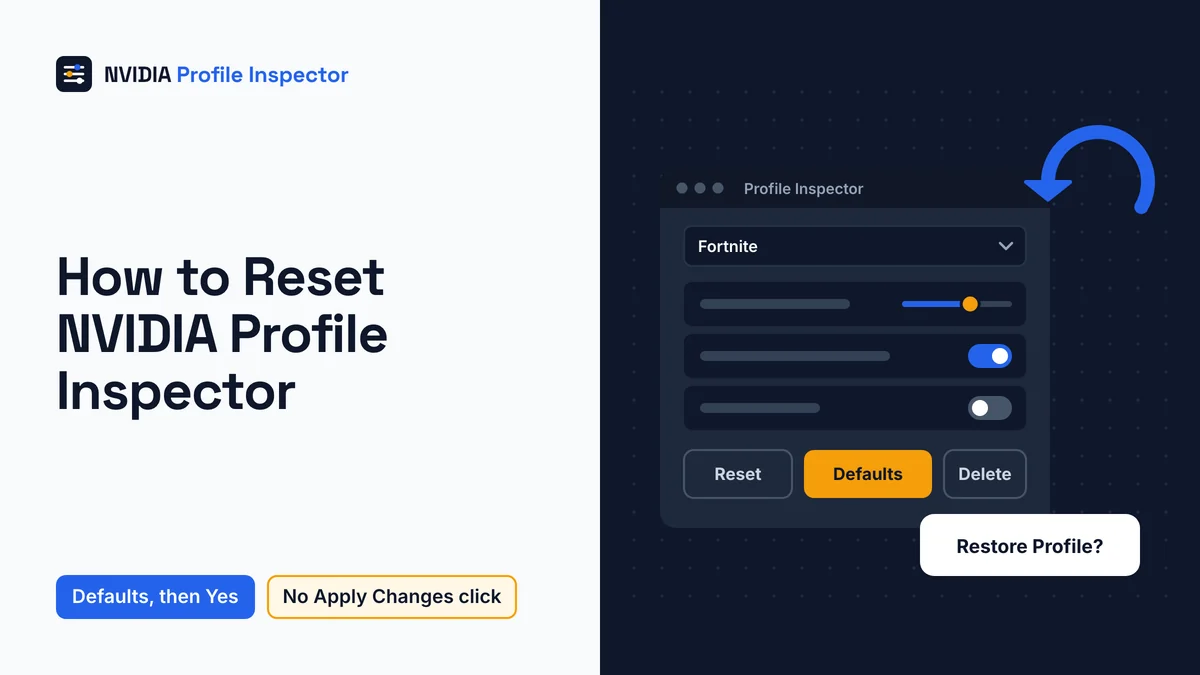
Select the game's profile, click Defaults and answer Yes. That is how to reset NVIDIA Profile Inspector values for one game: NVIDIA's values come back at once, with no Apply Changes click. For a single row, select it and click the small NVIDIA icon. The toolbar Reset button only drops edits you have not applied.
How to reset NVIDIA Profile Inspector settings
Start small: one row, then one game profile, and only then every profile in the driver. The README gives the same advice: restore a single setting or profile before resetting the whole driver database.

Before any reset, export a .nip backup of your profiles so your own values can come back later.
Each control in the window clears a different scope, and only some write to the driver at once.
| Control | Scope | Writes to the driver | What it clears | What stays |
|---|---|---|---|---|
Reset (toolbar) | Unapplied edits on the profile | No | Your pending edits | Every saved value |
| Row arrow | One unapplied edit | No | That edit | Every saved value |
| Row NVIDIA icon | One saved setting | Yes, at once | That one row | Every other row and profile |
Defaults, then Yes | One game profile | Yes, at once | Every change on that profile | Other profiles; a profile you made keeps its exe |
Delete | One profile | Yes, at once | The whole profile | Other profiles |
Filter panel Restore defaults | The list filters | No | Filter and value options | Every driver value |
| Import > "Import (replace) all driver profiles" | Every profile | Yes | The whole database, replaced by your text-format export | Nothing outside the file |
Reset vs Defaults in NVIDIA Profile Inspector
Reset only throws away edits you have not applied yet, while Defaults puts NVIDIA's values back. Most confusion about how to reset NVIDIA Profile Inspector comes from these two buttons sitting side by side. Their ToolTips say as much. Reset reads "Reset current profile changes", and Defaults reads "Restore profile to NVIDIA default settings". The Delete button reads "Delete the current profile".

The developer, Orbmu2k, settled it in issue #471 in June 2026. Replying to a report titled "Reset current profile issue", he wrote: "reset only resets pending changes, you need to use the "Defaults" Button to revert to driver defaults".
So Apply Changes is the save step for edits only. If a restore did not stick, a missing Apply Changes click is not the cause.
Reset one setting to its default
To reset one setting, click its row first. The NVIDIA icon only shows on a selected row that holds a saved change, and its ToolTip reads "Reset setting to NVIDIA default value". Click it and the default is written right away.
A short notice then names the setting and says it was "restored to NVIDIA default." Nothing needs applying after that, a point the author of issue #452 also makes.
A row you changed but never applied shows a plain arrow instead, labeled "Reset unsaved change". That arrow only undoes the edit inside the window.
You can undo a forced DLSS preset this way and keep the other DLSS rows. A forced rBAR - Enable row, the ReBAR switch, resets the same way.
If you restored the wrong row, pick your old value again and click Apply Changes.
Reset a game profile to NVIDIA defaults
To reset a game profile, select the game in the profile box and click Defaults. A box titled "Restore Profile" asks "Restore profile to NVIDIA driver defaults?", and you click Yes.
A notice confirms the profile was "successfully restored to driver defaults", and the profile stays selected.
What "default" means depends on who made the profile. On a profile NVIDIA ships with the driver, its predefined values come back. On a profile you created, every setting stored on it is removed, while the profile and its linked exe stay. A profile you created then holds no settings, and safe starting values for each setting group list a value and hex code for each row.
Defaults only touches the selected profile, never the whole database. To undo it, import the .nip file you exported first. Mind your aim, too: in issue #178 a user asked for that button to move away from the others, because it is too easy to hit by mistake.
A driver update can also reset some values on its own, a separate problem covered under settings that change back after a driver update.
How to reset all profiles at once
Profile Inspector 3.x has no single button that resets every profile. The reset-all function still sits in the source code, but nothing in the window calls it, at v3.0.2.1 (stable, July 5, 2026) or on master on November 1, 2026.

Ask a forum how to reset NVIDIA Profile Inspector completely, and someone will say to hold Ctrl while you click the restore button. That answer describes the old 2.x window, builds 2.4.0.4 through 2.4.0.34. There, Ctrl+click asked "Restore all profiles to NVIDIA driver defaults?". The Ctrl+click trick is gone in 3.x, so pick one of these paths instead.
| Path | What you get back | Cost |
|---|---|---|
View Modified Profiles, then Defaults on each listed profile | NVIDIA values on NVIDIA's profiles, your own profiles emptied | One click per profile |
| Import > "Import (replace) all driver profiles" | The whole database as it was in your text-format export | Needs an "Export all profiles (NVIDIA Text Format)" file made earlier |
NVIDIA Control Panel, Manage 3D settings > Restore Defaults link | Defaults for the whole Manage 3D Settings page | Unclear whether it clears rows only Profile Inspector shows |
| Clean driver install (Custom > "Perform a clean installation") | NVIDIA's factory profiles, per a user report | Removes all driver setting changes, monitor ones included, per the same report |
Take a snapshot before any big reset. In 3.x, Export > "Export all profiles (NVIDIA Text Format)" saves the entire database to one file. Its partner, Import > "Import (replace) all driver profiles", puts that whole state back later. The export and import pair is your undo for every path in the table. Make one before each big round of tweaks as well, not only before a reset.
NVIDIA's Control Panel help describes two restore controls. The Restore button on the Global Settings tab restores global settings. The Restore Defaults link at the top of Manage 3D Settings resets every default on that page. Whether it also clears the hidden rows is unclear, so check one changed row in Profile Inspector afterward.
A clean driver install is the heaviest option. In issue #403, a user says it returns NVIDIA's factory profiles and removes all changes to driver settings, monitor ones included. The same user lists the steps for the NVIDIA App, GeForce Experience and the downloaded installer. A project collaborator adds that the checkbox sits under the installer's Custom option.
A change made in one NVIDIA tool shows up in the others, so learn how the NVIDIA App and Control Panel share these profiles.
Deleted a game profile by mistake?
No button brings a deleted profile back. A profile NVIDIA ships returns only with the next driver install, and a profile you made has to be created again.
The tool warns you first: "Really delete this profile? Note: NVIDIA predefined profiles can not be restored until next driver installation". The box is titled "Delete Profile", and a Yes removes the profile's exe entries along with it. The view then jumps to the global profile. The base profile itself can never be deleted.
Two fixes come from users in issue #192. The reporter got a "catastrophic failure" error when adding the deleted Fortnite profile back. One reply says installing the latest driver and restarting the PC helped. Another says to create a new profile and add the game's exe to it.
Two users in issue #110 reported deleting the Fortnite profile the same way in 2024. A recreated Fortnite profile starts with no settings, so re-enter the values you had set, or import the .nip backup you exported before the delete.
How to check the reset worked
A reset that worked shows two things: the confirmation notice, and the row or profile no longer counting as changed.
| Action | Notice you should see | Second check |
|---|---|---|
| Row NVIDIA icon | " | Select the row again: the NVIDIA icon is gone |
Defaults on an NVIDIA profile | Profile successfully restored to driver defaults | The profile drops out of View Modified Profiles |
Defaults on a profile you made | Same notice | The profile stays in View Modified Profiles; its rows show no saved values |
Delete | Profile successfully deleted. | The profile box switches to the global profile |
To see the driver's current state, click Reset, which reloads the profile from the driver, and look again. Any value still listed as saved survived the restore.
For a DLSS preset, the game is the real test. The DLSS indicator prints the active preset letter on screen, so show the DLSS indicator to see which preset loads after the restore.
How to uninstall NVIDIA Profile Inspector
NVIDIA Profile Inspector has no uninstaller. Reset the profiles you changed, then delete the program folder, its settings folder in %LocalAppData% and, if you like, its .nip file links.
Deleting the program undoes no driver change, because your values live in the driver. So reset each changed profile with Defaults before you delete the exe, since the tool is the easiest way to restore those values.
- Reset each changed profile first with
Defaults. "View Modified Profiles" shows which ones to visit. - Close the tool and delete the folder you extracted it to.
- Delete
%LocalAppData%\nvidiaProfileInspector. It holdssettings.xmlwith your window size, theme, filters, favorites and update channel. If asettings.xmlsat next to the exe, step 2 already removed it. - Optional: remove the
.nipfile type entries,.nipandnvidiaProfileInspector.nipunderHKEY_CURRENT_USER\Software\Classes, plus the Applications entry for the exe. Do this only after the exe is gone. If you start the tool again, it writes the keys back.
If the tool ever ran as administrator, the same keys may also sit under HKEY_LOCAL_MACHINE\Software\Classes. Without admin rights, that write fails quietly and leaves nothing there. Back up each key first with Registry Editor > File > Export, as Microsoft's registry backup steps show, so a wrong delete can be imported back.
If an antivirus alert is the reason you are removing the tool, first read why antivirus tools flag the download.
FAQ
Does Defaults on the Base Profile reset every game?
No. Defaults only touches the selected profile, so on _GLOBAL_DRIVER_PROFILE (Base Profile) the Base Profile's own values return. Game profiles keep theirs. To clear the games as well, run Defaults on each one listed under View Modified Profiles, or use another reset-all path.
How do I reset the Fortnite profile to defaults?
Pick the Fortnite profile and click Defaults, not Delete, so NVIDIA's own values for that profile come back. If you already deleted it, try the user-reported fixes for a deleted profile, then re-enter your values.
Can I reset profiles from the command line?
No. The README's command line list has switches to import and export, but none to reset or delete a profile, and issue #184 is a request for exactly that. The nearest scripted undo is to import a .nip file you exported earlier with -silentImport.
Will reinstalling the NVIDIA driver reset my profiles?
A user report linked in issue #403 says a clean installation returns NVIDIA's factory profiles and removes your driver-setting changes, monitor ones included. A normal update over the top keeps most values, users report in issue #323, though rBAR - Enable slipped back for one of them.
Why did Restore miss some Ultra Low Latency rows?
Restore skipping Ultra Low Latency rows was a bug in old 2.x builds. On user-created profiles, a restore could skip two Ultra Low Latency entries, per issue #110. The developer said it should be fixed in 2.4.0.4 (March 2023). If you still run an older build, update it to 3.0.2.1, then check the Ultra Low Latency settings again.
Conclusion
For one game, select its profile, click Defaults and answer Yes; for one row, select it and click the NVIDIA icon. Both write NVIDIA's values at once, while the toolbar Reset only drops edits you never applied.
Export a .nip backup before any reset, because 3.x has no single button that clears every profile. Afterward, look for the confirmation notice, and after a DLSS restore let the indicator confirm the active DLSS preset letter.