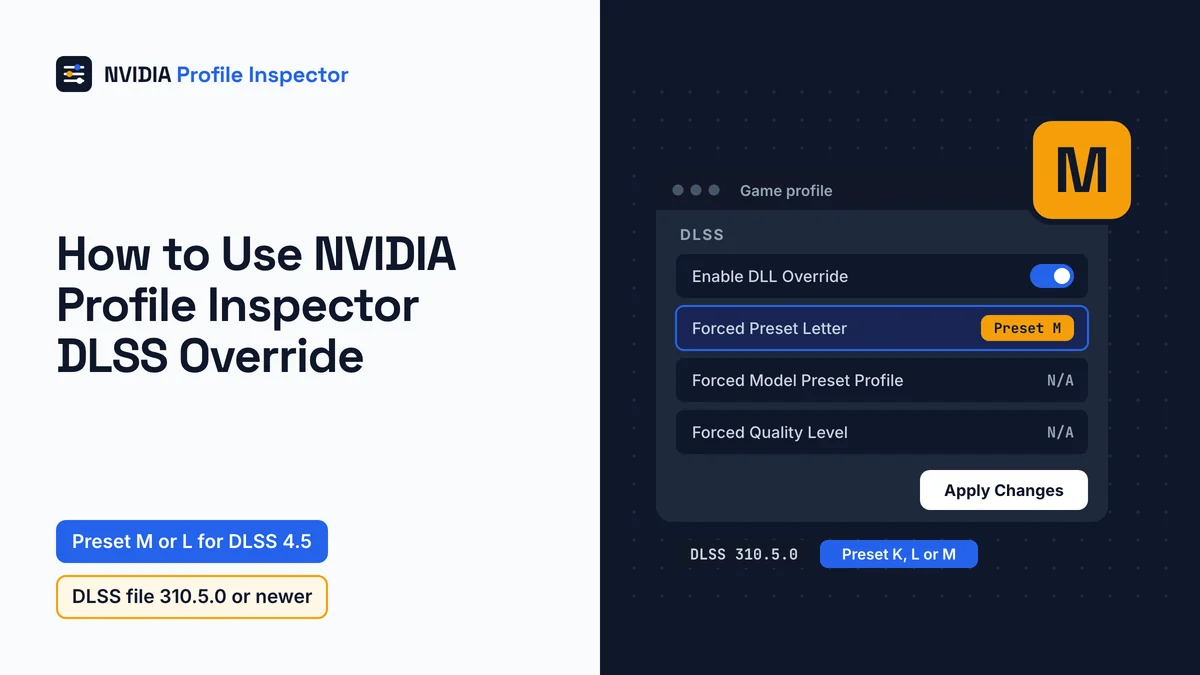
To use the NVIDIA Profile Inspector DLSS override, open the game's profile and set DLSS - Enable DLL Override to On. Then pick Preset M or L for DLSS 4.5 (K for DLSS 4) in DLSS - Forced Preset Letter. Leave DLSS - Forced Quality Level at N/A and click Apply Changes. The game needs DLSS 2 or newer, and L or M need a DLSS file at 310.5.0 or newer on your PC.
Does DLSS override work on any game?
Only games that already ship DLSS 2 or newer can take an NVIDIA Profile Inspector DLSS override. The tool's settings file also warns that some games refuse it, and a game with no DLSS cannot gain it this way. With the override on, the driver loads the newest Super Resolution file on your PC in place of the game's bundled copy. Swapping in the newer file is how a DLSS 2 game ends up running a transformer preset.
Open the game's own graphics menu first. If DLSS shows up there, the game passes the Game check in the table.
| Check | What you need | Why |
|---|---|---|
| Game | DLSS 2 or newer built in | Settings file: "Only DLSS2+ games support the override" |
| Graphics card | Any GeForce RTX card | NVIDIA says RTX 20 and 30 users may prefer Preset K |
DLSS - Forced Scaling Ratio | Driver 572.83 or newer | Minimum driver listed in the settings file |
Older RTX cards such as the RTX 3060 still qualify, though Presets L and M run slower on RTX 20 and 30 Series cards. The tool itself needs an NVIDIA card, so there is a separate answer on what AMD, Intel and Linux users can use instead.
Ban rules belong to each game's publisher, so for online games look up how anti-cheat systems treat a forced DLSS preset.
NVIDIA Profile Inspector DLSS override settings
Four rows on the game's profile decide whether the NVIDIA Profile Inspector DLSS override takes. You set the DLL switch and the letter yourself. The model preset profile and the quality level are the two you check, because either one can quietly undo your pick.

| Setting | ID | Set it to | Hex | Default, to undo |
|---|---|---|---|---|
DLSS - Enable DLL Override | 0x10E41E01 | On - DLSS-SR overridden by latest installed | 0x00000001 | Off, 0x00000000 |
DLSS - Forced Preset Letter | 0x10E41DF3 | Preset K, L or M (or Use recommended preset) | 0x0000000B, 0x0000000C, 0x0000000D (0x00FFFFFF) | N/A, 0x00000000 |
DLSS - Forced Model Preset Profile | 0x00634291 | Recommended, only if the letter has no effect | 0x00000001 | N/A, 0x00000000 |
DLSS - Forced Quality Level | 0x10AFB768 | N/A | 0x00000003 | N/A, 0x00000003 |
Labels have changed over time. A guide that shows "On - DLSS overridden by latest available" was written for an older build, so match the row by its ID instead.
Forum posts often quote the hex alone, so 0x0000000D in a thread means Preset M. The DLAA and render-scale switches are group 05 rows too, and the full list of group 05 rows sits with the settings overview.
How to force DLSS 4.5 in any DLSS game
Preset L or M on the game's own profile gives you DLSS 4.5, as long as the DLSS file on your PC is 310.5.0 or newer. Preset K is the pick if you want the DLSS 4 model instead. Five steps set those four rows on one game's profile.

Step 1: Select the game's profile
Set the letter on that one game's profile. In #348 the game's own profile worked where the Base Profile did not, so start there.
If the game is missing, learn how to open a game profile and add its exe, and export a .nip backup before you change anything.
Step 2: Turn on the DLL override
Switch DLSS - Enable DLL Override to its On value. A DLL is the file that holds the DLSS code, and Super Resolution (SR) is the upscaling part of DLSS.
NVIDIA delivers that file over the air, and the settings file warns that it often lags behind the newest release online. In issue #404, a user traced the files to subfolders of C:\ProgramData\NVIDIA\NGX\. Profile Inspector cannot install a newer DLL for you. The override only points the game at a file NVIDIA has already delivered.
Step 3: Check the DLSS version in brackets
The number in brackets after the On label is the newest SR file already on your PC, and it decides which letters exist. NVIDIA added Presets L and M in DLSS 310.5.0, per its release notes. A file older than 310.5.0 has no L or M, so keep Preset K or get a newer file.
Step 4: Pick Preset K, L or M
Pick K for DLSS 4, or L or M for DLSS 4.5, in DLSS - Forced Preset Letter. N/A leaves the choice to the game, and Use recommended preset hands it to the driver. Whatever you pick applies to every quality level the game uses. In the dropdown, K is Transformer Gen 1 while L and M are Transformer Gen 2, and which DLSS preset letter suits your card and mode compares them.
Step 5: Leave Quality Level at N/A, then apply
Leave DLSS - Forced Quality Level at N/A. A forced quality level makes the game use that mode's own preset, so a forced Preset M can seem to vanish once you play at Quality.
If the letter still does nothing, set DLSS - Forced Model Preset Profile to Recommended (0x00000001), as the settings file advises. If Recommended does not help, try Custom (0x00000002), the other value in the list. Then click Apply Changes. The driver reads the profile only as the game starts, so quit to the desktop and launch it again before you read the letter on the DLSS indicator.
A commenter in issue #371 described the quality level effect, citing a Reddit PSA, and pull request #374 added the preset profile row in January 2026.
Should you force Latest or a letter?
"Latest" in older guides and Reddit posts is today's Use recommended preset (0x00FFFFFF). NVIDIA's Recommended mapping gives Preset M in Performance, L in Ultra Performance and K in every other mode. With Recommended, Quality and DLAA stay on the DLSS 4 model, Preset K. A fixed letter such as M applies to every mode instead, Quality and DLAA included, at a higher cost there. Pick Recommended if you switch modes often, and a fixed letter if you want DLSS 4.5 in one mode you always play.
Global DLSS override on the Base Profile
A global override puts the same rows on _GLOBAL_DRIVER_PROFILE (Base Profile), so every DLSS game that has no value of its own gets your letter. Set DLSS - Enable DLL Override to On and DLSS - Forced Preset Letter to your letter there, then click Apply Changes.
Reports on the Base Profile are mixed. After DLSS 310.4.0, a user in issue #348 forced J globally and the game stayed on K, while the game's own profile worked. In #371, the reporter got global letters to work once the DLL came from NVIDIA's server instead of the Streamline repo. A second commenter in #371 wrote that since DLSS 310.4 the letters must be set in each game profile.
NVIDIA's Control Panel help describes global settings as the defaults for all applications, and program settings as a game's own set. When a game's profile holds a different letter, check on screen which one loads. Keep the global rows as a fallback and put the games you care about on their own profiles.
Force DLAA, Ultra Performance or a custom ratio
NVIDIA Profile Inspector can force the DLSS mode on one game: DLSS - Override DLSS modes to be DLAA = On turns every DLSS mode into DLAA. DLSS - Override Performance to be Ultra Performance makes the game's Performance setting run as Ultra Performance, and DLSS - Forced Scaling Ratio sets your own render scale.

| Goal | Setting = value | Hex | Needs |
|---|---|---|---|
| DLAA in every DLSS mode | DLSS - Override DLSS modes to be DLAA = On (ID 0x10E41DF4) | 0x00000001 | Nothing extra |
| Ultra Performance in place of Performance | DLSS - Override Performance to be Ultra Performance = On (ID 0x10AFB76C) | 0x00000001 | Nothing extra |
| Custom render scale | DLSS - Forced Quality Level = Custom, then DLSS - Forced Scaling Ratio (ID 0x10E41DF5) | 0x00000006, then 0x21 (33%) to 0x64 (100%) | Driver 572.83 or newer |
The list labels 33% Ultra Performance (0x21), 50% Performance (0x32), 58% Balanced (0x3A), 67% Quality (0x43), 77% Ultra Quality (0x4D) and 100% DLAA (0x64).
A custom ratio is the one case where DLSS - Forced Quality Level must not stay at N/A. The ratio only works with the quality level set to Custom. A forced quality level may change which preset the game picks, so check the preset again after you switch to Custom.
Ray Reconstruction has its own quality level entry (0x10BD9423) and its own ratio entry (0x10C7D4A2), with the same values. The file labels DLAA as a 100% render scale, so it is still DLSS, just without upscaling. DLAA has nothing to do with the older forced anti-aliasing modes found elsewhere in the tool.
Ray Reconstruction and Frame Generation overrides
Ray Reconstruction (RR) and Frame Generation (FG) each need their own override rows, separate from the Super Resolution rows. Turn one on only if the game uses that feature.
| Feature | DLL override | Preset letter | Note |
|---|---|---|---|
| Ray Reconstruction | DLSS-RR - Enable DLL Override 0x10E41E02 | DLSS-RR - Forced Preset Letter 0x10E41DF7 | Has its own N/A (0x00000000) and Use recommended preset (0x00FFFFFF) values |
| Frame Generation | DLSS-FG - Enable DLL Override 0x10E41E03 | DLSS-FG - Forced Preset Letter 0x10E41DF1 | DLSS-FG - Forced Mode offers N/A (0x00000000), Fixed (0x00000002) or Dynamic (0x00000004); the Dynamic MFG entries need driver 595.97 or newer |
| Multi Frame Generation | Uses the FG entries | DLSS-MFG - Fixed Frame Generation Count 0x104D6667 | 2x (0x00000001) to 6x (0x00000005); NVIDIA describes it as for RTX 50 Series users |
A letter means a different model in each list, so never copy a letter from the Super Resolution row into the RR or FG row.
NVIDIA launched DLSS 4.5 Ray Reconstruction on August 25, 2026 as an Early Access option in the NVIDIA App. The NVIDIA App offered Recommended or Preset F for RR, in 30 games at the time, according to NVIDIA's DLSS 4.5 Ray Reconstruction announcement. If your game has no DLSS Frame Generation at all, look at driver-level frame generation with Smooth Motion instead.
DLSS-NR rows for DLSS 5
The DLSS-NR rows are three entries in the same group, each with driver 610.47 as its minimum.
| Row | ID | Leave at (hex) |
|---|---|---|
DLSS-NR - Enable DLL Override | 0x10E41E04 | Off (0x00000000) |
DLSS-NR - Enable Streamline DLL Override | 0x10E41E05 | Off (0x00000000) |
DLSS-NR - Forced Preset Letter | 0x10E41DF8 | N/A (0x00000000) |
The settings file says the letter row forces "a specific DLSS Neural Rendering model preset". In build 3.0.2.1 (July 5, 2026), the DLSS-NR - Forced Preset Letter list shows Preset A to D without labels and Preset E to O marked unused. NVIDIA launched DLSS 5 with 3D-Guided Neural Rendering on September 3, 2026, in NBA 2K27 on RTX 50 Series cards. Players turn on the in-game "DLSS Neural Rendering" setting, per NVIDIA's DLSS 5 launch article.
Leave the three DLSS-NR rows at Off or N/A until a DLSS 5 game's own guide gives a value.
The newer settings file on GitHub adds one more row, ID 0x10E41E06, as a DLSS Streamline override with driver 616.56 as its floor. Build 3.0.2.1, released July 5, 2026, has no label for 0x10E41E06, so the row appears with whatever name the driver reports, or as a raw number.
Fixes when a forced DLSS preset will not stick
An override that does nothing traces to one of the causes in this table, from a forced quality level to an outdated driver. The rows that cite an issue number are user reports, not statements from the developer.

| What you see | Likely cause | What to do |
|---|---|---|
| Quality shows K and Performance shows M, whatever you forced | Forced Quality Level is set, a user report in #371 | Put DLSS - Forced Quality Level back to N/A |
| The forced letter is ignored in one game | The game needs the preset profile entry, which pull request #374 added to the settings file | Set DLSS - Forced Model Preset Profile to Recommended, or Custom if that fails |
| Forced SR letter ignored with Ray Reconstruction on | Club386 reported in January 2026 that SR overrides do not work while Ray Reconstruction is active | Turn RR off in the game's menu, then test the SR letter again |
| Works on the game profile, fails on the Base Profile | Global forcing on DLSS 310.4.0, reported in #348 | Keep the change on the game profile |
| Game still runs Preset F, an old CNN letter | DLSS - Forced Preset Letter left at N/A, so the game keeps its own pick (a user report in #381, driver 591.74) | Set Preset K, L or M in that row |
| Preset L or M has no effect, but K works | The bracketed DLSS version is older than 310.5.0, the DLSS release that added Presets L and M | Use Preset K, or get a 310.5.0 or newer DLL |
| Ignored after you copied a DLL from the Streamline repo | In one report in #371, that file did not respond to forced presets | Let the override use NVIDIA's own file |
| Still ignored after every other fix | Damaged driver or NGX files | One user in issue #380 fixed it with DDU (Display Driver Uninstaller, a tool that fully removes the driver), a fresh driver install and updated NGX DLSS files |
DLSS - Forced Scaling Ratio or another entry is missing | Driver older than the floor the settings file lists for that entry; in #516 a user could not find it | Update to that floor, such as 572.83, 595.97 or 610.47 |
| Version in brackets is older than the newest DLSS | The over-the-air file lags | Expected; in #404 the number changed after a game loaded a newer file |
| Nothing changes and the game has no DLSS option | The game lacks DLSS 2 or newer, or blocks overrides | No fix inside Profile Inspector |
Work through the rows in order, and click Apply Changes after each fix before you test again. A setting that worked once and then changed after a driver install is a different problem, with its own steps on why settings reset after a driver update. Users report the NVIDIA App switching the DLL row off on unsupported games (#329, #466), one way the App and Profile Inspector clash over one profile.
How to undo a DLSS override
To undo the override, set every row you changed back to Off or N/A on the game's profile, then click Apply Changes. The four main rows go back to Off or N/A (0x00000000), except the quality level, whose N/A is 0x00000003. With the DLL override Off, the game uses its own DLSS file again.
The DLAA, Ultra Performance, ratio, RR and FG rows also return to Off or N/A (0x00000000), and the RR quality level returns to N/A (0x00000003).
If you lost track of what you changed, the Defaults button writes NVIDIA's driver values back to the whole game profile. Turning DLSS off altogether happens in the game's own graphics menu, not in Profile Inspector.
FAQ
Why can't I override the DLSS version?
Profile Inspector cannot pick a DLSS version. The DLL override row only loads the newest Super Resolution file NVIDIA has already delivered to your PC. On November 7, 2026, NVIDIA's DLSS SDK on GitHub was at release 310.9.16, so a lower number in brackets means the over-the-air file has not caught up yet.
Do you need a preset with DLSS Swapper?
Usually yes. A swapped DLL on its own keeps whatever preset the game asks for, so it may still run an old letter. Set DLSS - Forced Preset Letter to K, L or M on the game's profile, then confirm the letter on the DLSS indicator after a restart.
Can you change the DLSS preset mid game?
No. NVIDIA's own override steps ask you to quit to the desktop first. The game reads its profile at launch, so a letter changed while it runs only takes effect after a full restart of the game.
Does the DLSS override work on Linux?
Not on native Linux, where NVIDIA states that forcing a preset is not supported yet and no profile editor runs. Games started through Valve's compatibility layer are the exception: launch options there can pick the newest model.
Conclusion
Forcing DLSS 4.5 takes two rows on the game's own profile: DLSS - Enable DLL Override at On and Preset M or L in DLSS - Forced Preset Letter. Keep the quality level at N/A, click Apply Changes and quit the game fully before launching it again. Owners of RTX 20 and 30 cards, where L and M run slower, can settle on Preset K. A forced letter is still only a request, so turn on the on-screen preset readout for that first launch.